Add Promo Code
Overview
The Promo Code Lookup service provides Promo Codes one by one to users from a predefined list. You can upload the list of Promo Codes either manually or by importing a CSV file.
Each Promo Code is assigned to exactly one user. Once a Promo Code is assigned, it will not be available for any other user.
How to Set Up
Step 1 — Access the Service
Click on the Manage Service button corresponding to the Add Promo Code service.
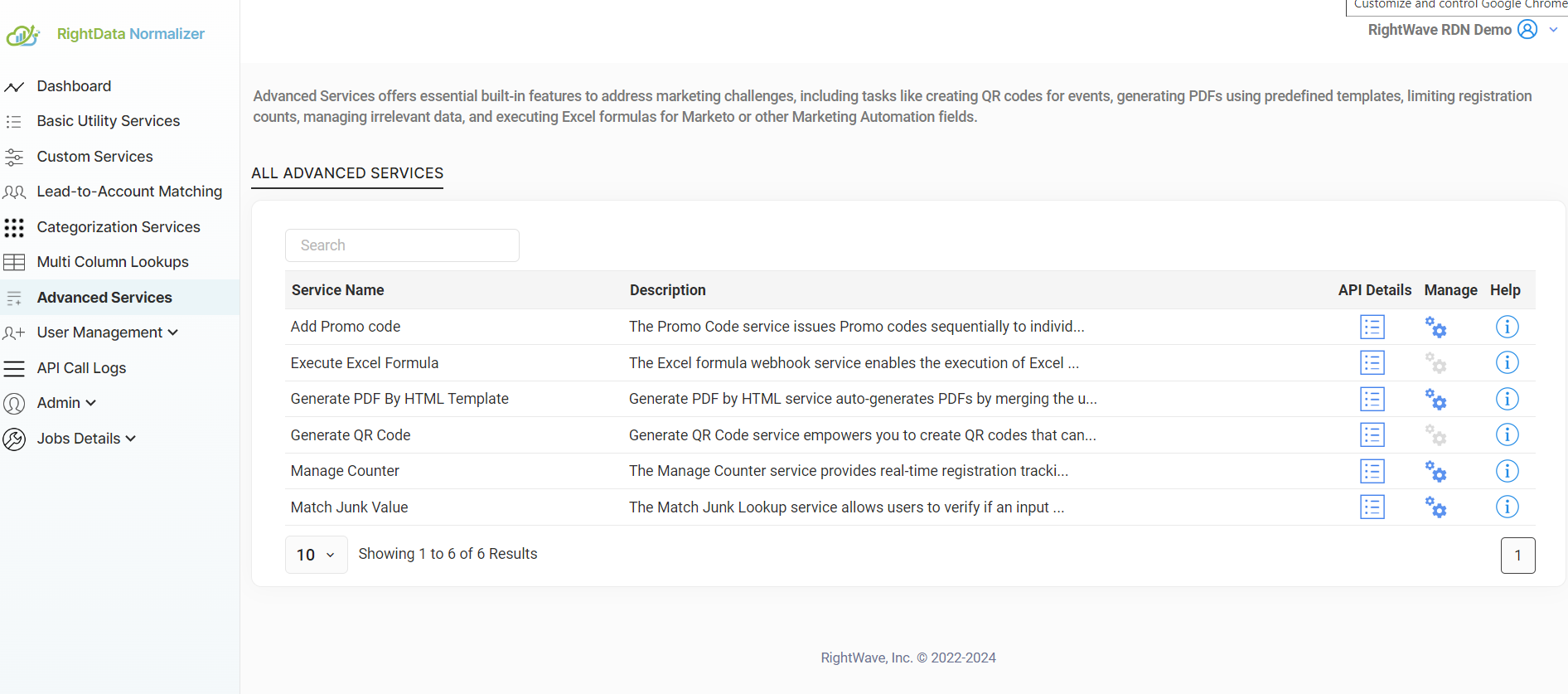
Step 2 — Create a New Promo Code Lookup
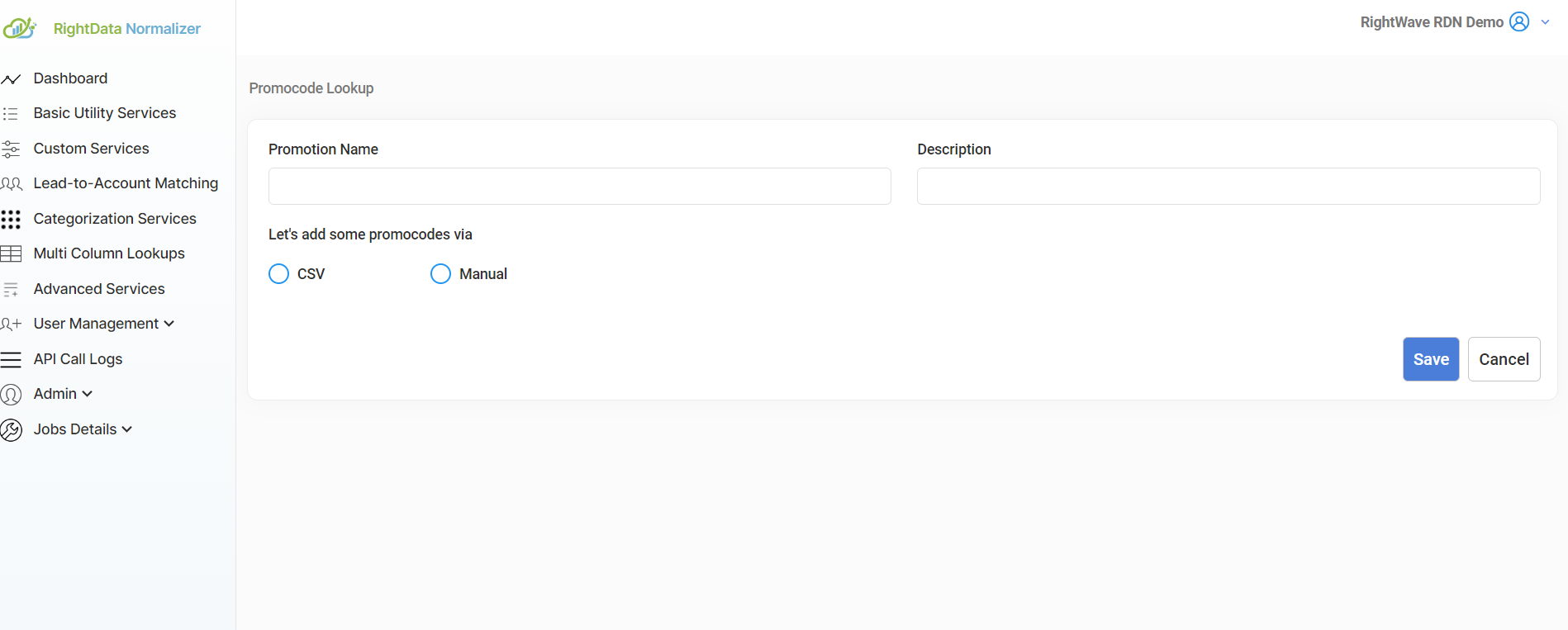
Click the "+" icon to create a new Promo Code Lookup.
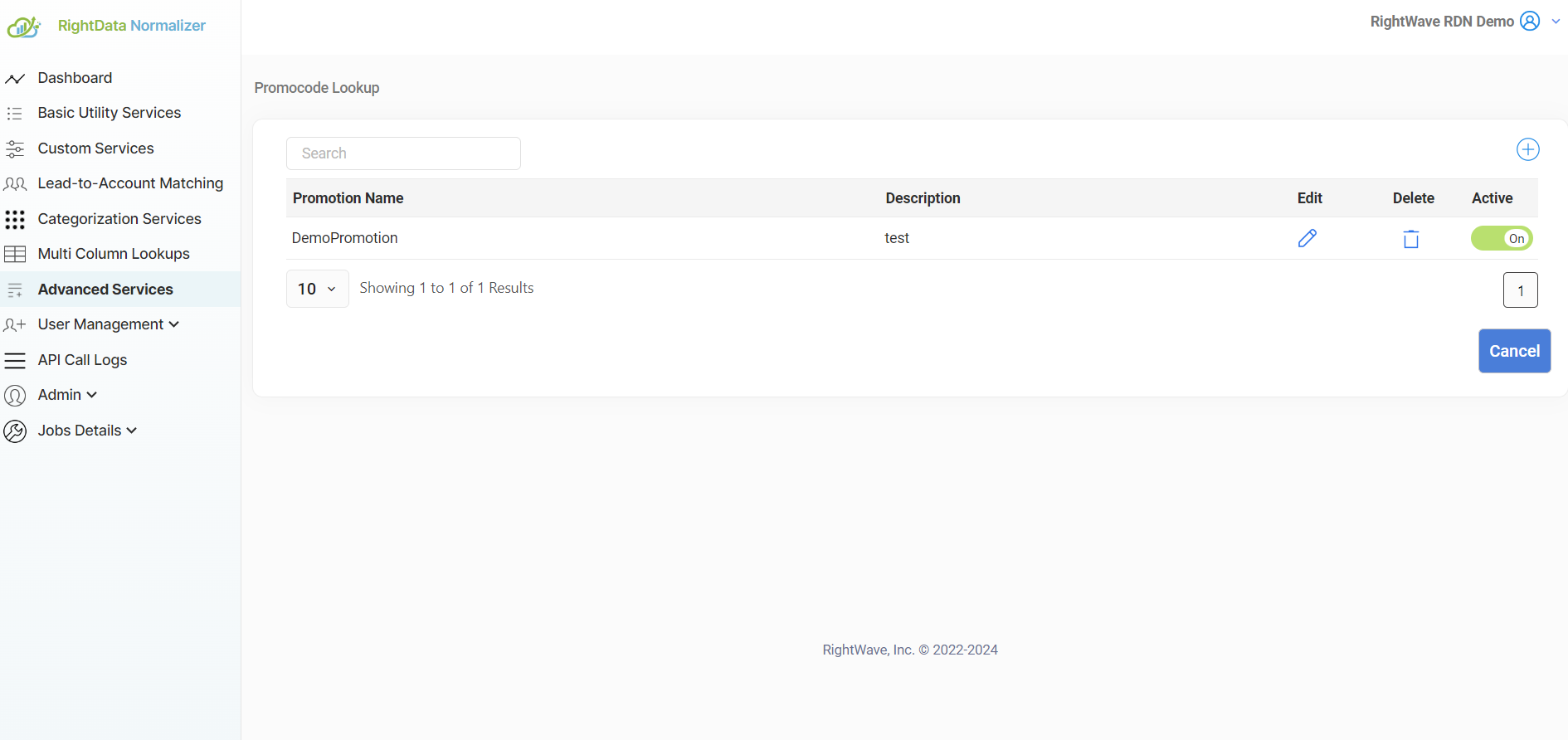
Enter the Promotion Name and Description.
Step 3 — Add Promo Codes
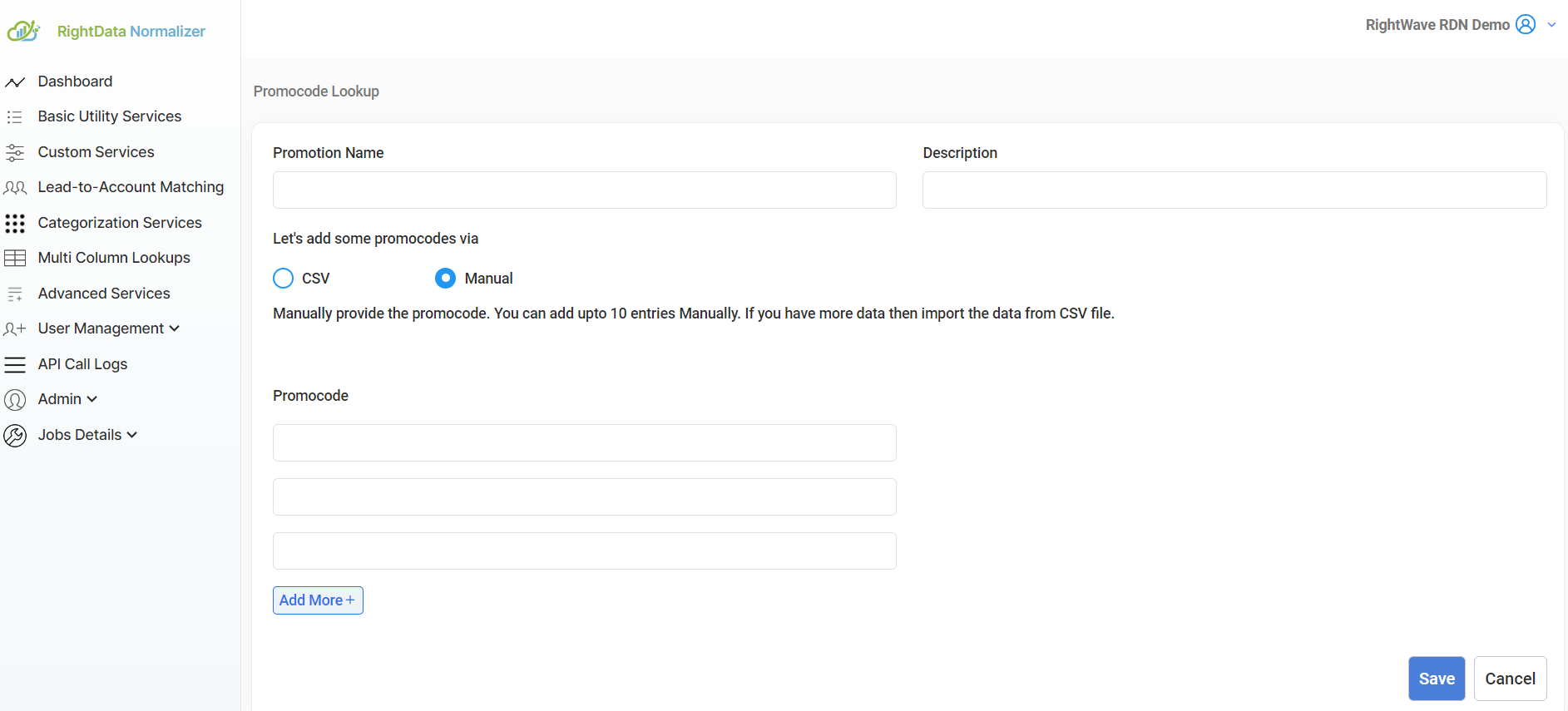
Choose one of the two methods to add Promo Codes:
- ✍️ Manual
- 📂 CSV Upload
Enter Promo Codes manually — suitable for up to 10 entries.
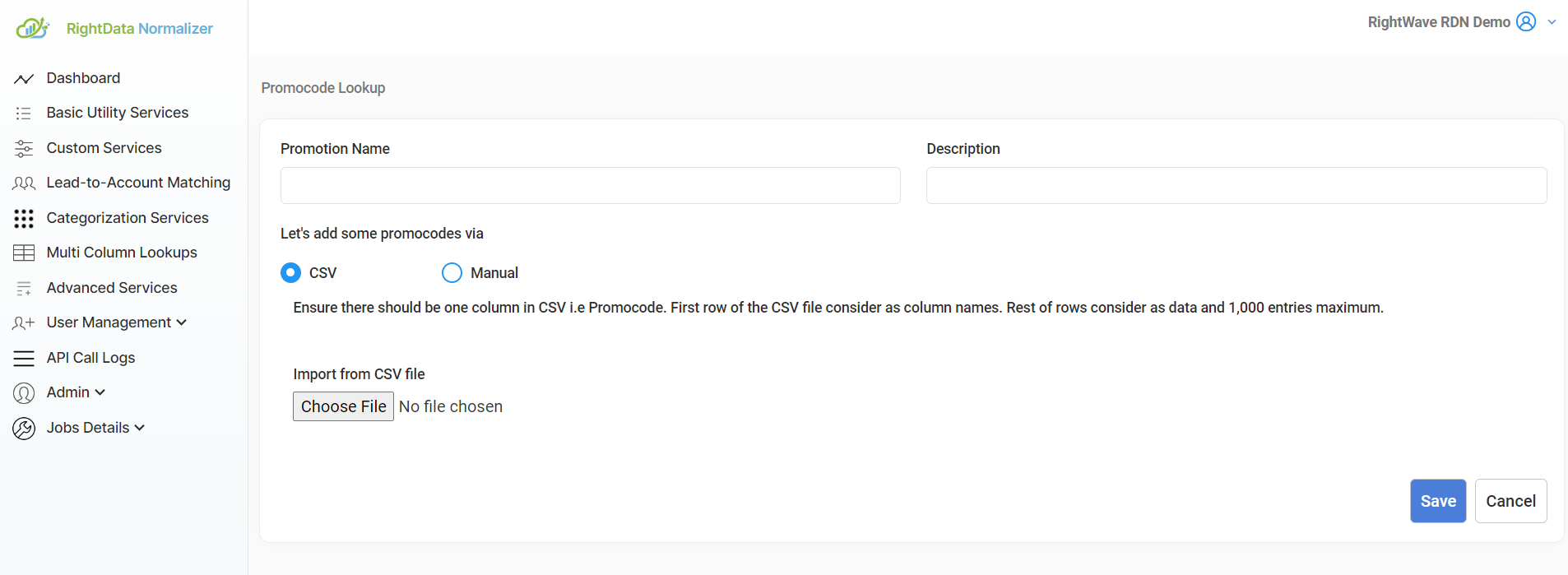
Import data from a CSV file — suitable for large amounts of Promo Codes.
- Only one column is allowed in the CSV (the Promo Code column).
- The first row is treated as the column name; remaining rows are data.
- Maximum 1,000 entries including the header.
- Duplicate Promo Codes will be discarded automatically.
Step 4 — Edit Lookup
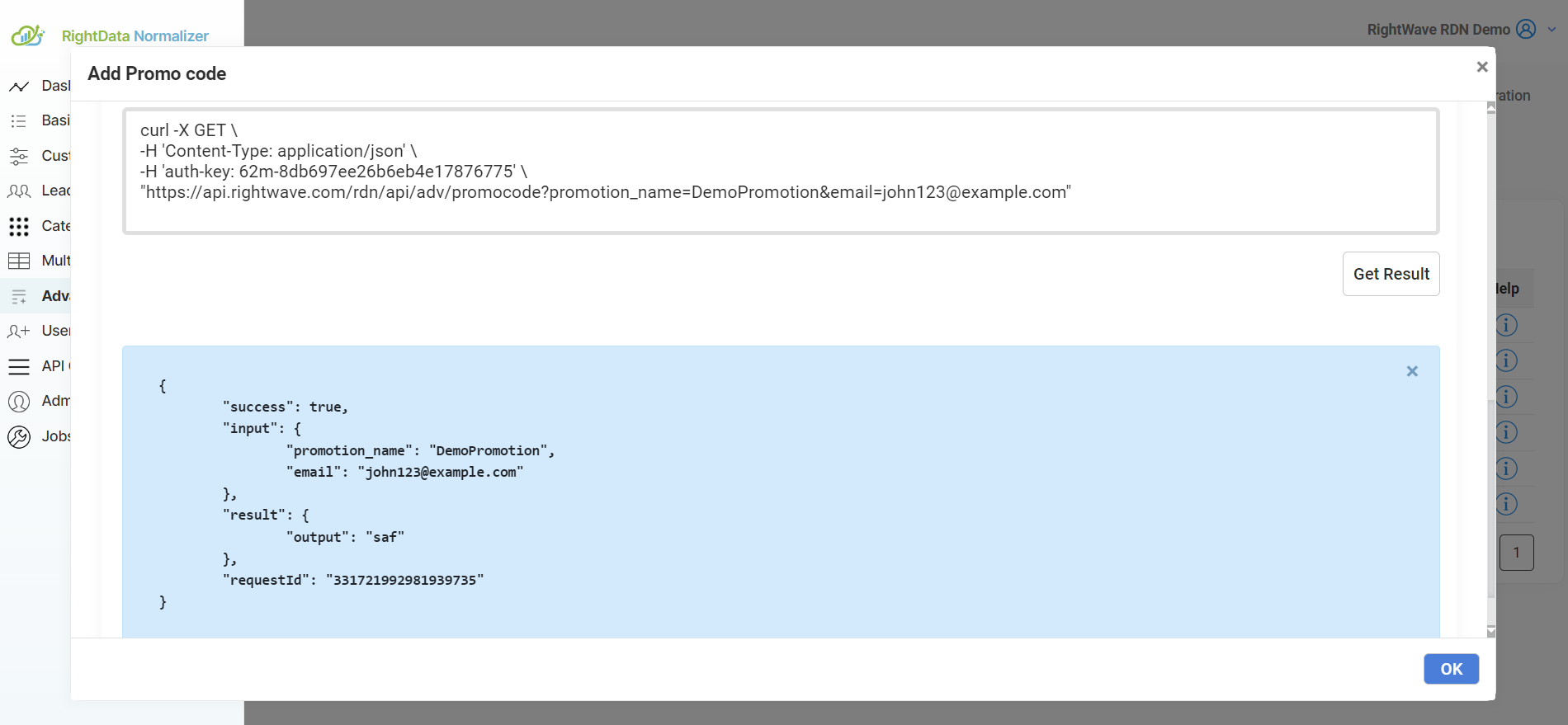
API Details
Webhook URL
https://api.rightwave.com/rdn/api/adv/promocode?promotion_name={Marketo token for promotion_name}&email={Marketo token for email}
Input Parameters:
| Parameter | Description |
|---|---|
promotion_name | Name of the Promotion |
email | Valid email ID of the lead |
Output JSON:
{"promocode": "<promocode value>"}
Example
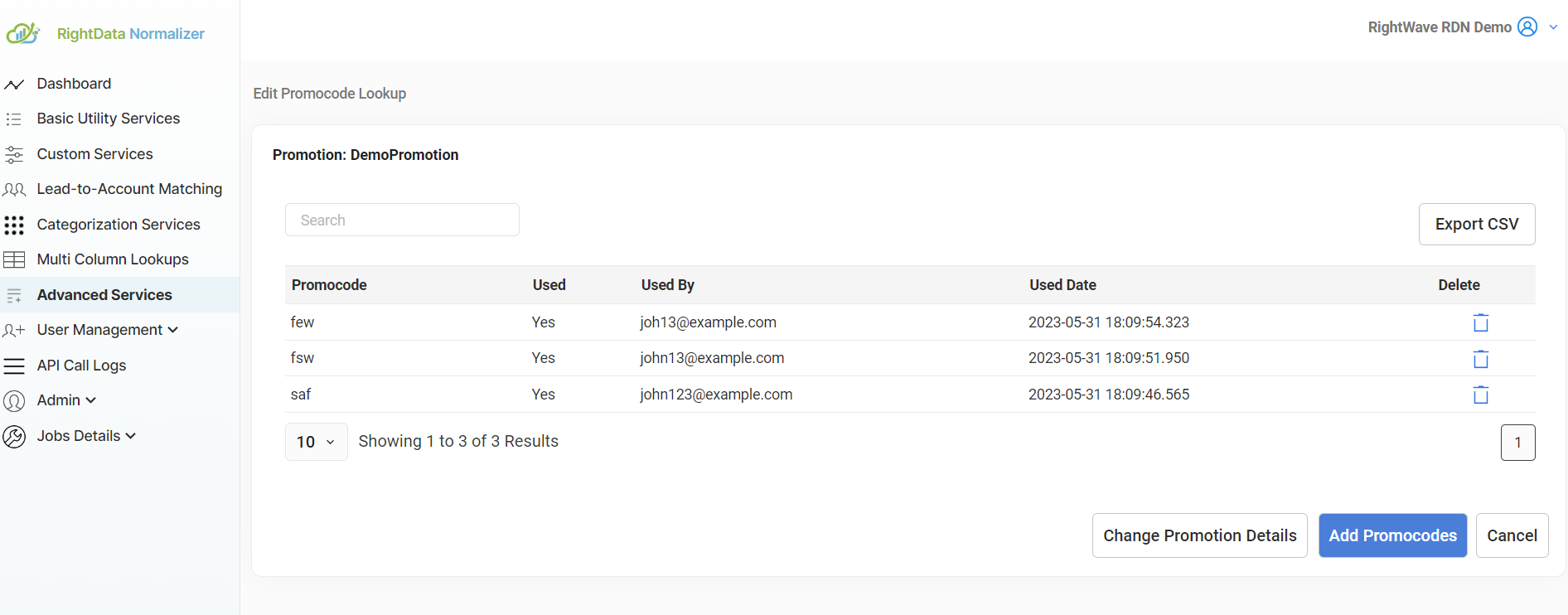
A company provides Promo Codes to the first 500 users who register for an event via a web form. Using the Add Promo Code service, each webhook call from Marketo returns a unique Promo Code which can be included in the confirmation email to the registrant.
Configuring in Marketo
Service Name: Add Promo Code
Service Type: Advanced Service
The request parameter values and Marketo Fields shown below are examples. Enter values based on your specific service requirement.
Step 1 — Create a New Webhook
Go to Admin → Webhooks and click New Webhook.
Step 2 — Configure the Webhook
| Field | Value |
|---|---|
| Webhook Name | Add Promo Code (or as per requirement) |
| URL | https://api.rightwave.com/rdn/api/adv/promocode?promotion_name={token}&email={token} |
| Template | Leave blank |
| Request Token Encoding | None (POST) / uneditable (GET) |
| Response Type | JSON |
| Request Type | GET |
Step 3 — Add Authentication Header
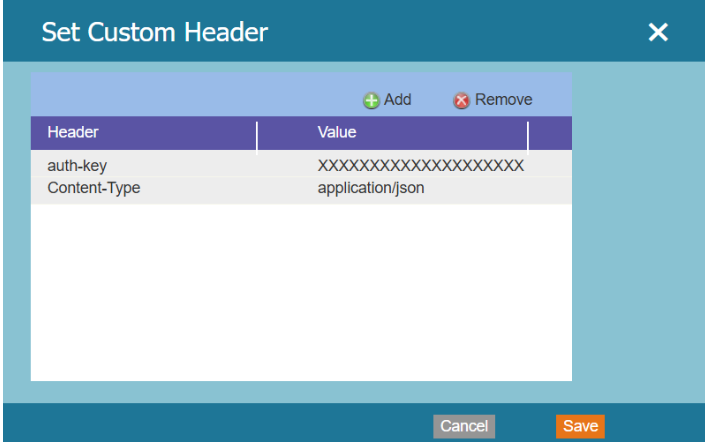
Use the exact same auth-key and Content-Type values shown above when configuring the webhook.
Step 4 — Response Mappings
Map the promocode response attribute to the appropriate Marketo field. Returning JSON from the service is recommended for easy mapping.