Categorization Service
Overview
RDN Categorization Service provides an open, real-time execution platform designed to help you effortlessly transform and normalize your data. By defining custom rules and setting priorities, you can categorize and organize key data points such as Job Role, Job Level, Division, Department, and more — ensuring that your data is aligned with your business needs.
With this service, you have full control over the categorization process. Simply define your input data, set the custom rules that matter to you, and determine the desired output in the form of categories and subcategories. This powerful tool converts raw, unstructured input into normalized, usable data tailored to your objectives.
Whether you're looking to optimize your marketing efforts, enhance data segmentation, or create more personalized campaigns, RDN Categorization Service ensures that your data is organized efficiently — giving you a deeper, more accurate understanding of your audience.
Key Features
- Custom Rules Engine: Tailor your categorization process with flexible rules to meet your unique business requirements.
- Real-Time Data Processing: Get instant results with real-time execution, ensuring your data is always up-to-date and relevant.
- Efficient Data Normalization: Transform input data into standardized categories, improving data consistency and usability.
- Better Campaign Personalization: Utilize organized data to craft more targeted, effective campaigns that resonate with your audience.
How It Works
To categorize your input, create custom rules using either SQL or JavaScript operators depending on your preference and requirements.
- 🗄️ SQL Operators
- ⚙️ JavaScript Operators
Use operators such as LIKE, IN, NOT IN, EQUALS, NOT EQUALS to define matching conditions for your input data.
Use operators such as ==, !=, >, <, >=, <=, &&, ||, ! for fine-grained, expression-based rules.
Steps to Categorization
- Define Categories and Subcategories: Start by defining the output categories (e.g., Job Role, Job Level) and their respective subcategories.
- Create Custom Rules: Use SQL or JavaScript operators to create rules that match specific criteria in your input data.
- Apply and Transform: Once your rules are defined, apply them to your data and instantly see the categorized output.
Benefits
- Precision and Control: Customize the categorization logic to fit your unique data requirements, ensuring accuracy in every output.
- Flexibility: Choose between SQL and JavaScript operators based on your comfort and the complexity of the task.
- Simplify Complex Data Tasks: Easily categorize and transform even complex data sets, like converting job titles into meaningful roles and levels.
- Time-Saving: Streamline processes that would otherwise be tedious and time-consuming, helping you achieve faster, more reliable results.
Create Categorization Service
To create a Categorization Service within the platform, follow the steps below.
Click the "+" icon to initiate the creation of a new Categorization Service.
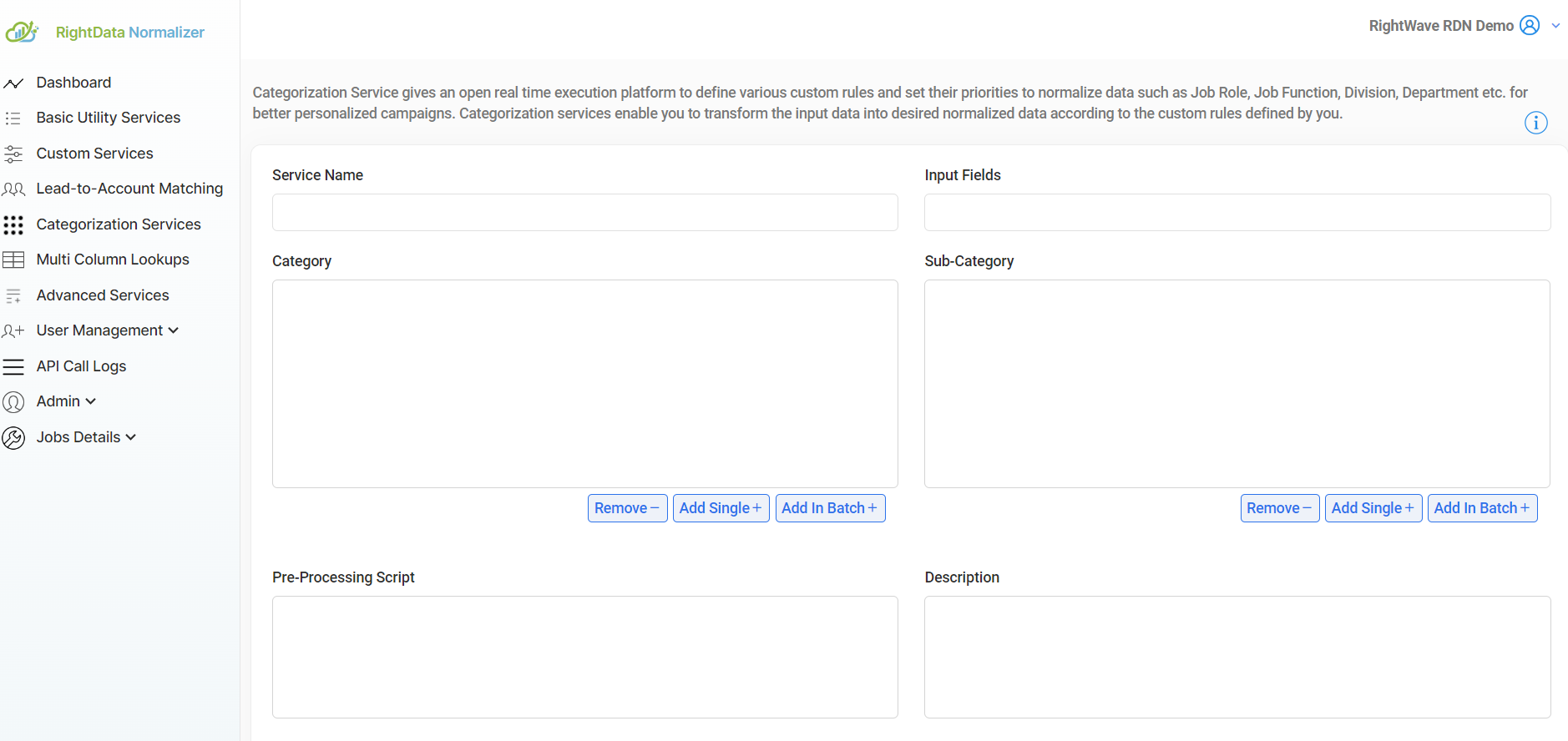
Fill in the following fields:
- Service Name: Enter a unique name for your Categorization Service (up to 100 characters). This serves as the identifier within the platform.
- Input Fields: Define the input fields used in the categorization process. Field names in the request (query string) must exactly match the names provided here. For example, if the input field is
title, the request must contain the parametertitle. Separate multiple fields with commas (e.g.,title, name). Each field name cannot exceed 50 characters. - Category: Specify the category assigned to input data when it matches your custom rules. Represents the main grouping based on the input.
- Sub-Category (Optional): Further refine the categorization under the main Category. Can be left blank if not needed.
- Description: Provide a description of the custom rules you plan to implement, clarifying the purpose and logic behind the service.
Custom Rules
Managing Custom Rules
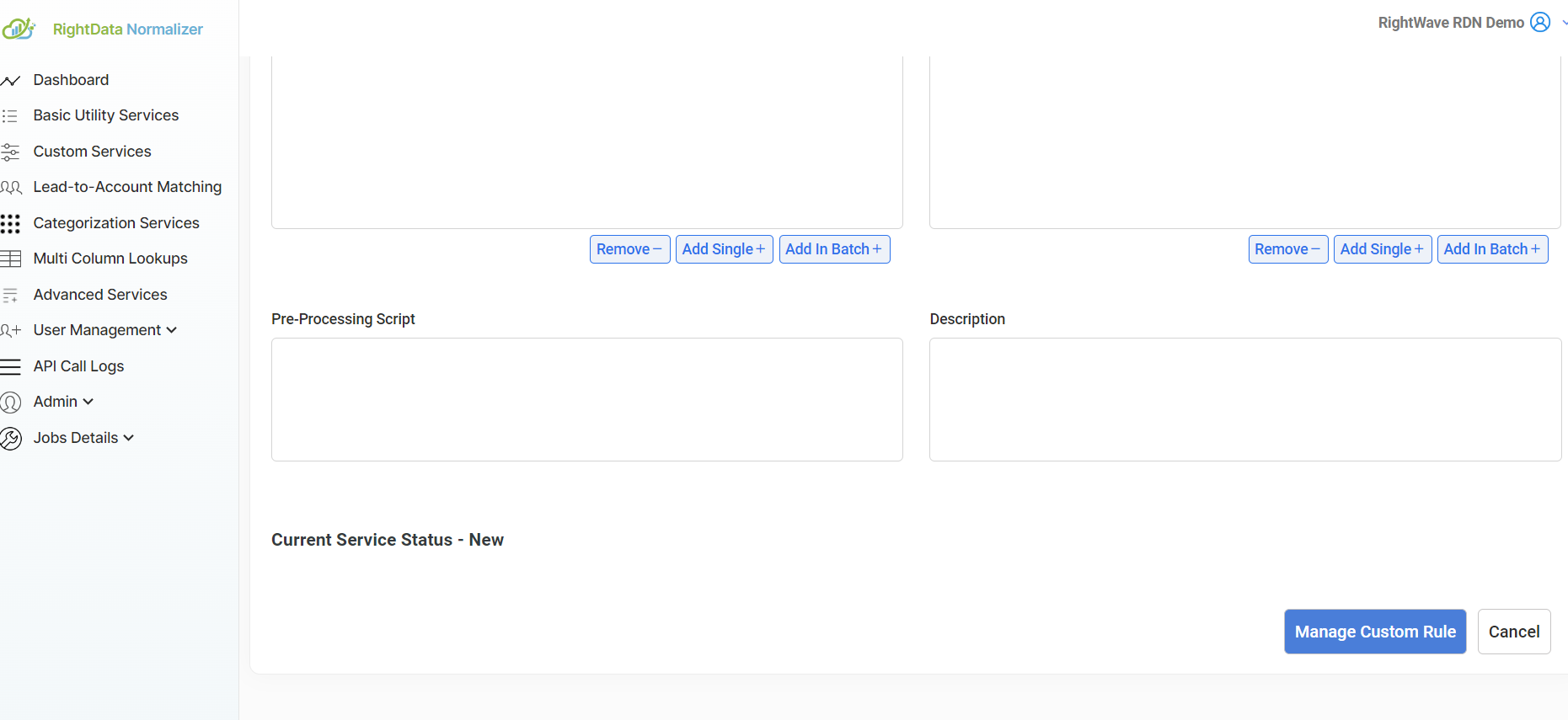
After entering the service details, click the "Manage Custom Rule" button to define the custom rules for categorization.
At least one Category must be created before you can define any custom rules.
Rule Format
Each custom rule is made up of the following components:
| Field | Description |
|---|---|
| Rule Id | A unique identifier for the rule (e.g., rule_1). |
| Match Expression | A JavaScript expression evaluated for each input. If it returns true, the rule is applied. |
| Category | The top-level classification assigned when the rule matches. |
| Sub-category | (Optional) A further classification under the main category. |
Relational Operators
| Operator | Meaning |
|---|---|
== | Equal to |
=== | Strictly equal to |
!= | Not equal to |
!== | Strictly not equal to |
> | Greater than |
< | Less than |
>= | Greater than or equal to |
<= | Less than or equal to |
&& | Logical AND |
|| | Logical OR |
! | Logical NOT |
Example Use Cases
Example 1 — Age Group Categorization
Rule Id: age_check_01
age >= 18 && age <= 30
- Category:
Age Group - Sub-category:
Young Adult
This rule categorizes the input as "Young Adult" if the age is between 18 and 30 (inclusive).
Example 2 — Region Categorization
Rule Id: location_check_01
location === "USA" && language === "English"
- Category:
Region - Sub-category:
North America
This rule classifies the input as "North America" if the location is "USA" and the language is "English".
Example 3 — Product Type Categorization
Rule Id: sales_check_01
sales > 1000000 && productCategory === "Electronics"
- Category:
Product Type - Sub-category:
High Sales Electronics
This rule classifies the input as "High Sales Electronics" if sales exceed 1 million and the product category is "Electronics".
Complex Rule Example
Rule Id: product_price_check_01
price > 1000 && price <= 5000 && stock > 0 && category === "Luxury"
- Category:
Product Type - Sub-category:
Luxury Item
This rule categorizes the product as "Luxury Item" if the price is between 1,000 and 5,000, stock is greater than 0, and the category is "Luxury".
Updating a Custom Rule
To update an existing custom rule:
- Click on "Manage Custom Rule".
- Under the Action column, click "Edit" for the rule you want to modify.
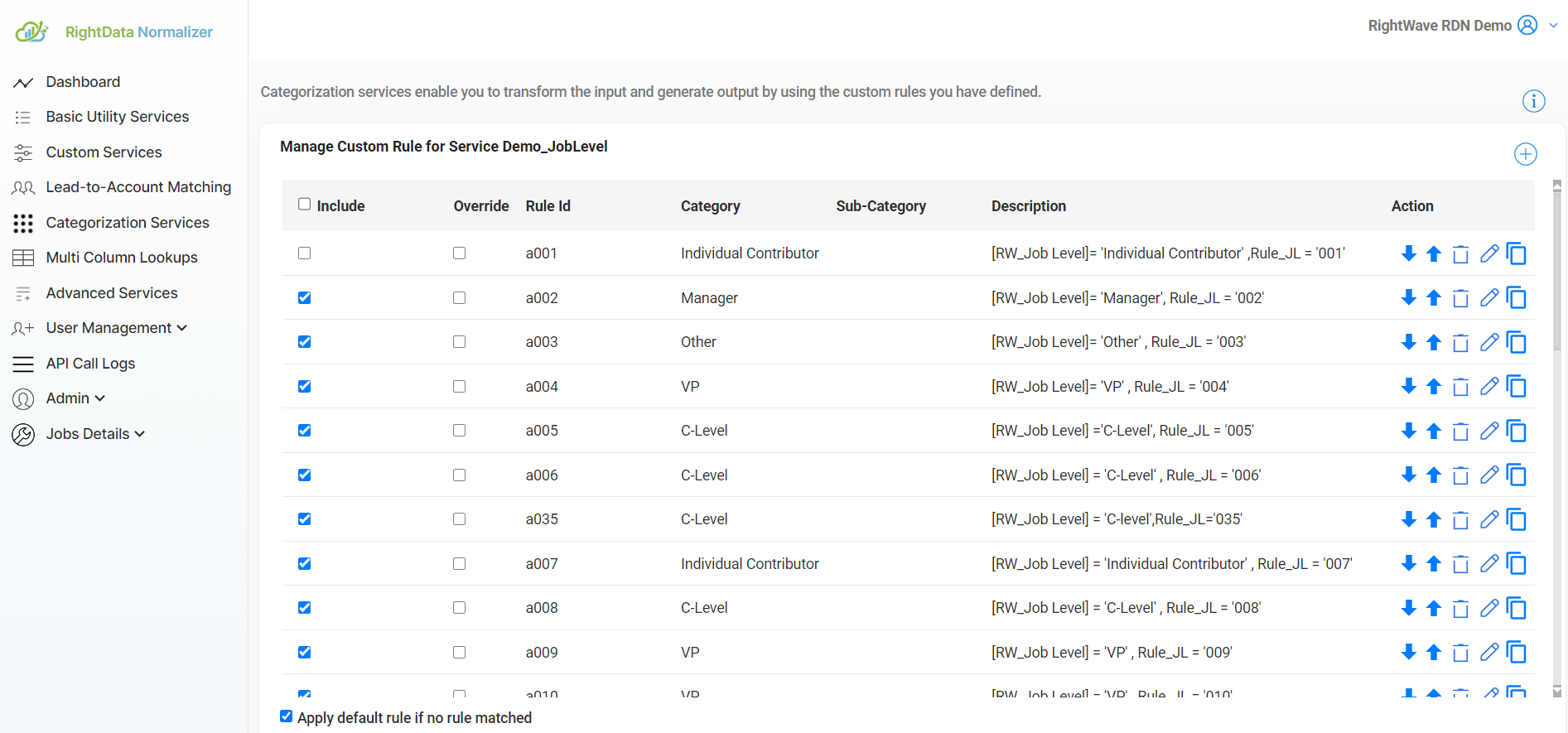
Input parameters (i.e. request parameters) are available as JavaScript variables in the Match Expression. These variables are case-sensitive.
Configure the rule fields:
- Rule Id: The unique ID associated with the custom rule.
- Match Expression: Update the rule expression as needed.
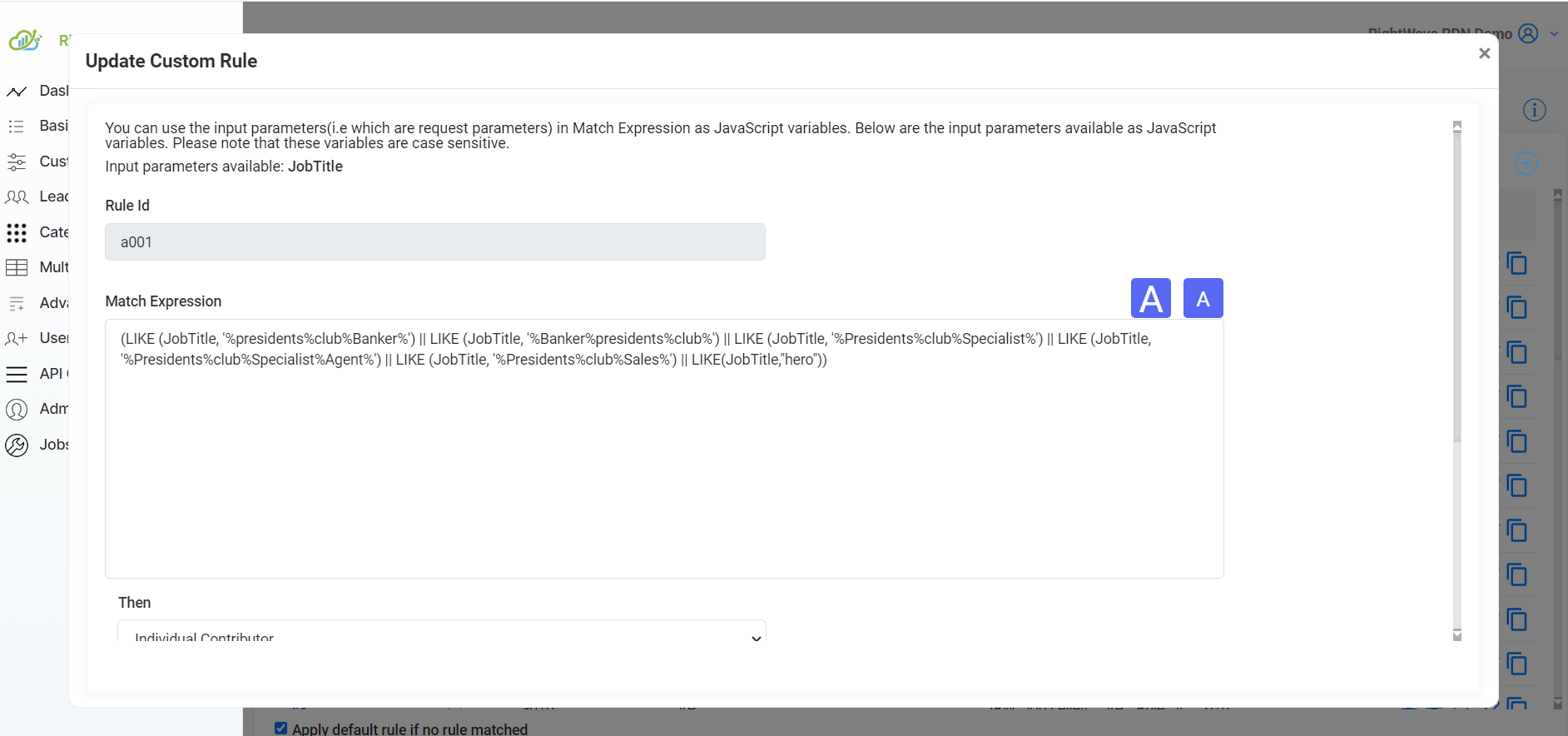
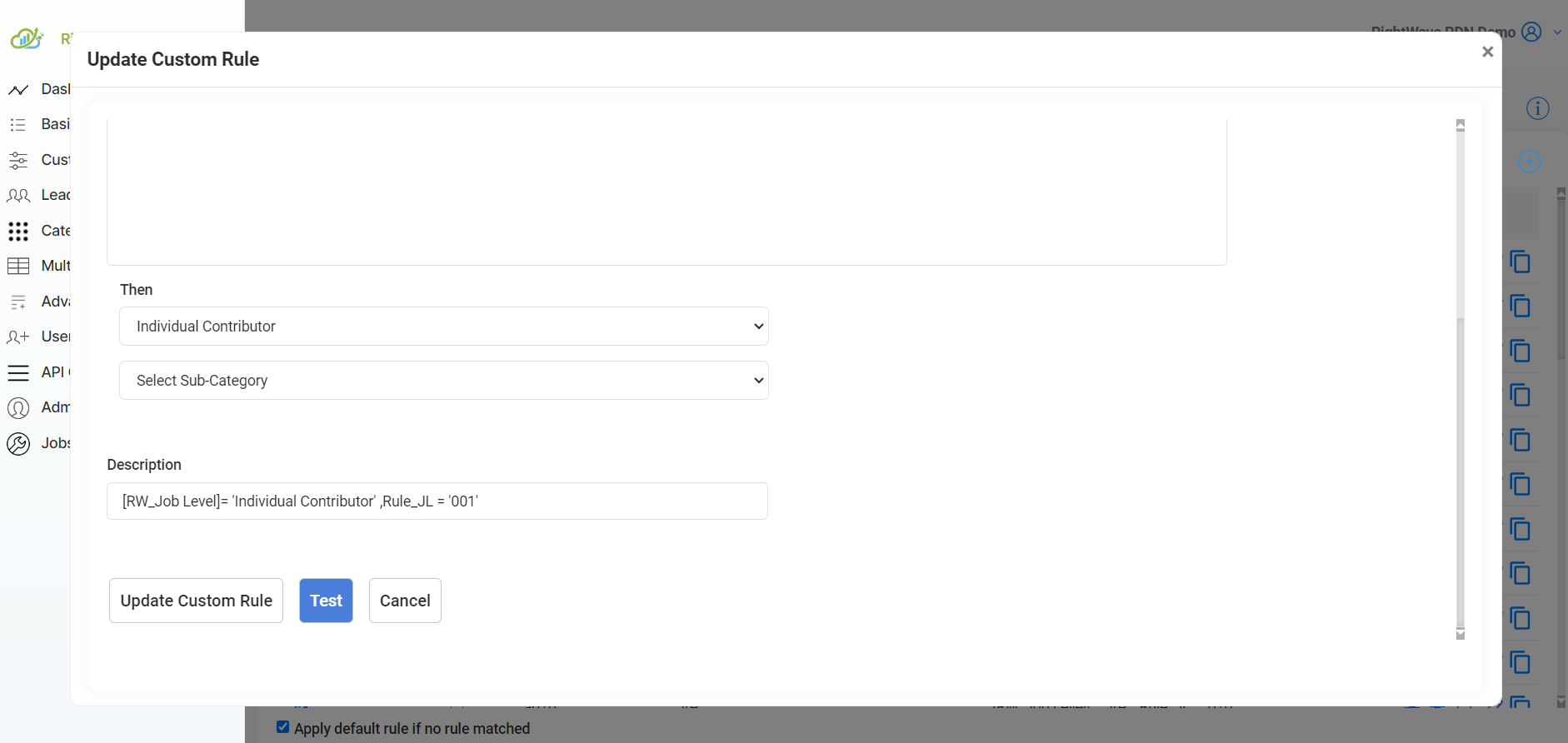
- Then: Specify the Category and Sub-category from the dropdown lists as the output.
- Description: A short description of the custom rule, including the category name and Rule Id.
- Test: You must run a test case before saving — this validates that the expression has no syntax errors. When you click Test, a UI will appear where you can enter values for the different input parameters.
- Update Custom Rule: Click this button to save and apply the changes.
Managing Rules in the Action Column
Once custom rules are created, you can manage them via the Action column with the following options:
- Include: Controls whether an individual rule is deployed to production. Only checked rules are deployed — useful when a rule is still being finalized.
- Override: If checked, this rule can override the result of a previous rule when its expression passes the match.
- Custom Rule Execution Order: Control the order of rule execution using the Up/Down arrows. Rules are executed in the order displayed.
- Edit Rule: Modify the rule. Any edited rule must pass the test case again before saving.
- Clone Rule: Duplicate an existing rule to use as a starting point for a similar rule.
- Delete: Permanently removes the rule and its associated categorizations. This action cannot be undone.
The "Apply default rule if no rule matched" checkbox ensures a default categorization is applied when no custom rule matches the input data — guaranteeing all records are categorized.
Quick Test & Deployment
Quick Test
After adding your custom rules, run a Quick Test to validate the logic before going live.
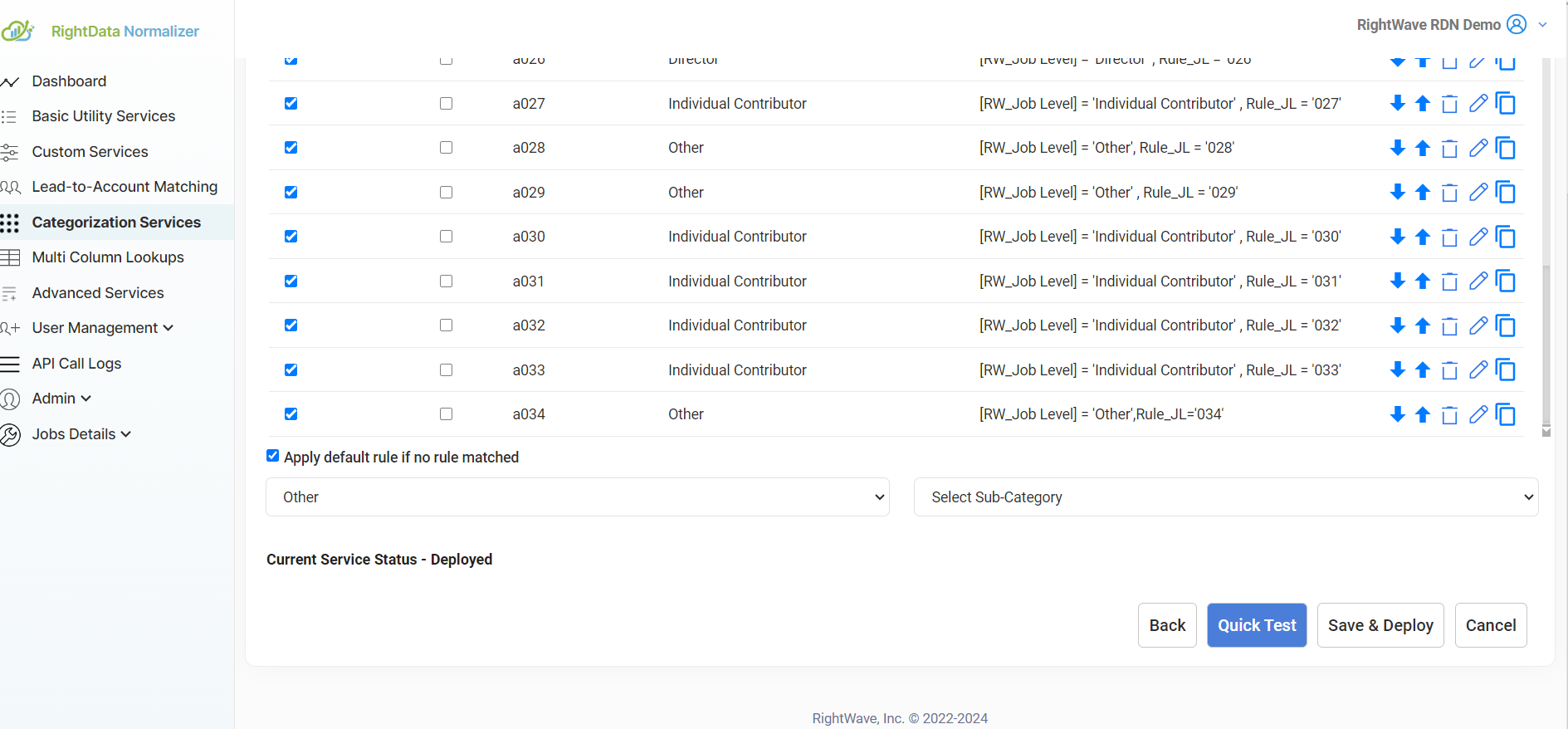
Click the "Run Test" button to execute the custom rules against test data and review the Execution Logs.
Save & Deploy
Once testing is complete, click "Save and Deploy" to make the Categorization Service available for production requests.
If the Save & Deploy checkbox is unchecked, the Categorization Service will not be available for production use.