Custom Lookup
Overview
The Custom Lookup feature in RDN offers enhanced flexibility for users who need to tailor data to their specific needs. Unlike Standard Lookups — where you can only view data — Custom Lookups allow you to fully manage and modify lookup entries. You can create custom lookups with up to ten columns, giving you the ability to structure and organize your data precisely as needed.
With Custom Lookups, you can:
- Add new values to the lookup table.
- Modify existing entries to meet evolving requirements.
- Remove unwanted data as necessary.
This feature ensures full control over your data, making it ideal for specialized tasks where Standard Lookups may not suffice.
Key Features
- Create Up to 10 Columns: Structure your lookup to match specific business needs.
- Full Control: Add, modify, and delete entries as required.
- Data Insertion Options: Insert data manually or upload in bulk using CSV files.
- API & JavaScript Support: Integrate custom lookups into your systems using the API or JavaScript.
Data Management and Integration
You can insert data into custom lookups in two ways:
- ✍️ Manual Entry
- 📂 CSV Upload
Add individual records directly into the lookup table one at a time.
Import bulk data to quickly populate the lookup table. A CSV file can contain a maximum of 10 columns and 5,000 data rows.
Additionally, you can access custom lookups via the API or use JavaScript functions for integration into web applications or automated workflows.
Creating a Custom Lookup
Step 1 — Open Custom Lookups
Click on CUSTOM LOOKUPS, then click the "+" button to create a new custom lookup.
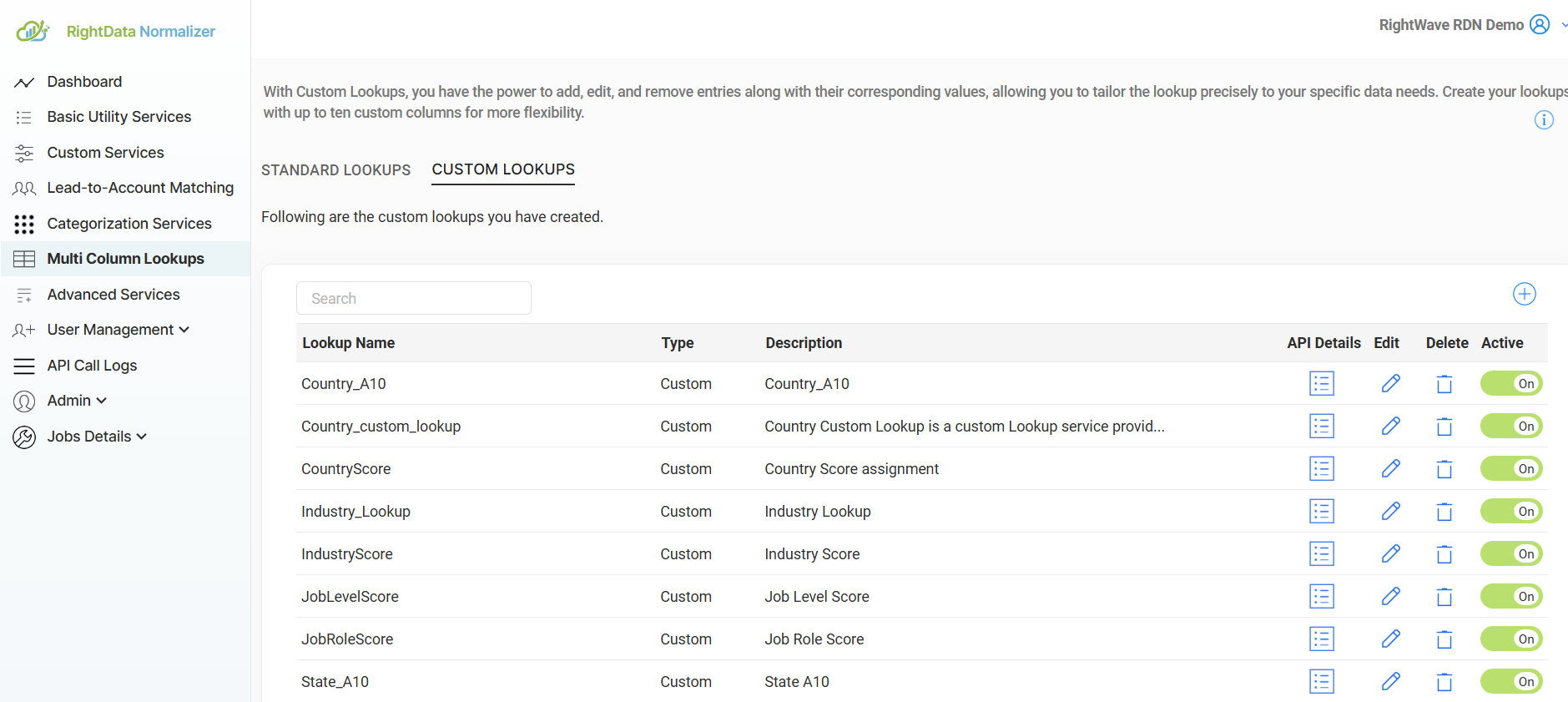
Step 2 — Configure the Lookup
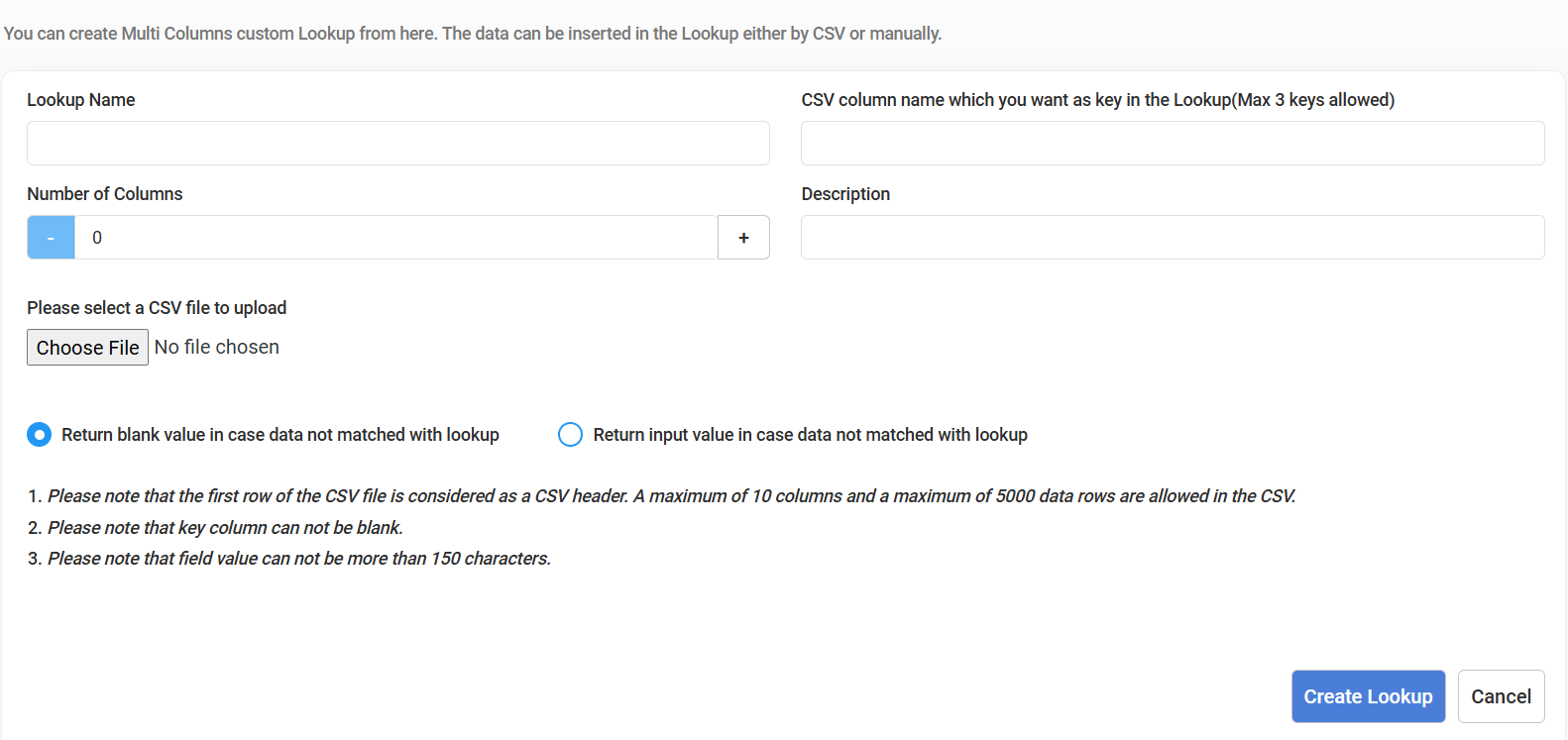
Fill in the following fields:
- Lookup Name: A unique identifier for the lookup. The name must not contain spaces.
- CSV Column Keys (Max 3): Define the key columns from your CSV file. You can have one primary key or a composite key (up to 3 keys). The combination of keys in a composite key must be unique.
- Number of Columns: The total number of columns in your CSV file (maximum 10).
- Description: A brief description of the lookup.
Step 3 — Import from CSV
- Click the "Choose File" button to upload your CSV file.
- Choose one of the following options for unmatched data:
- Return blank value if data is not matched with the lookup.
- Return input value if data is not matched with the lookup.
- Click "Create Lookup" to finalize.
Managing an Existing Lookup
Once created, you can manage your lookup using the following options:
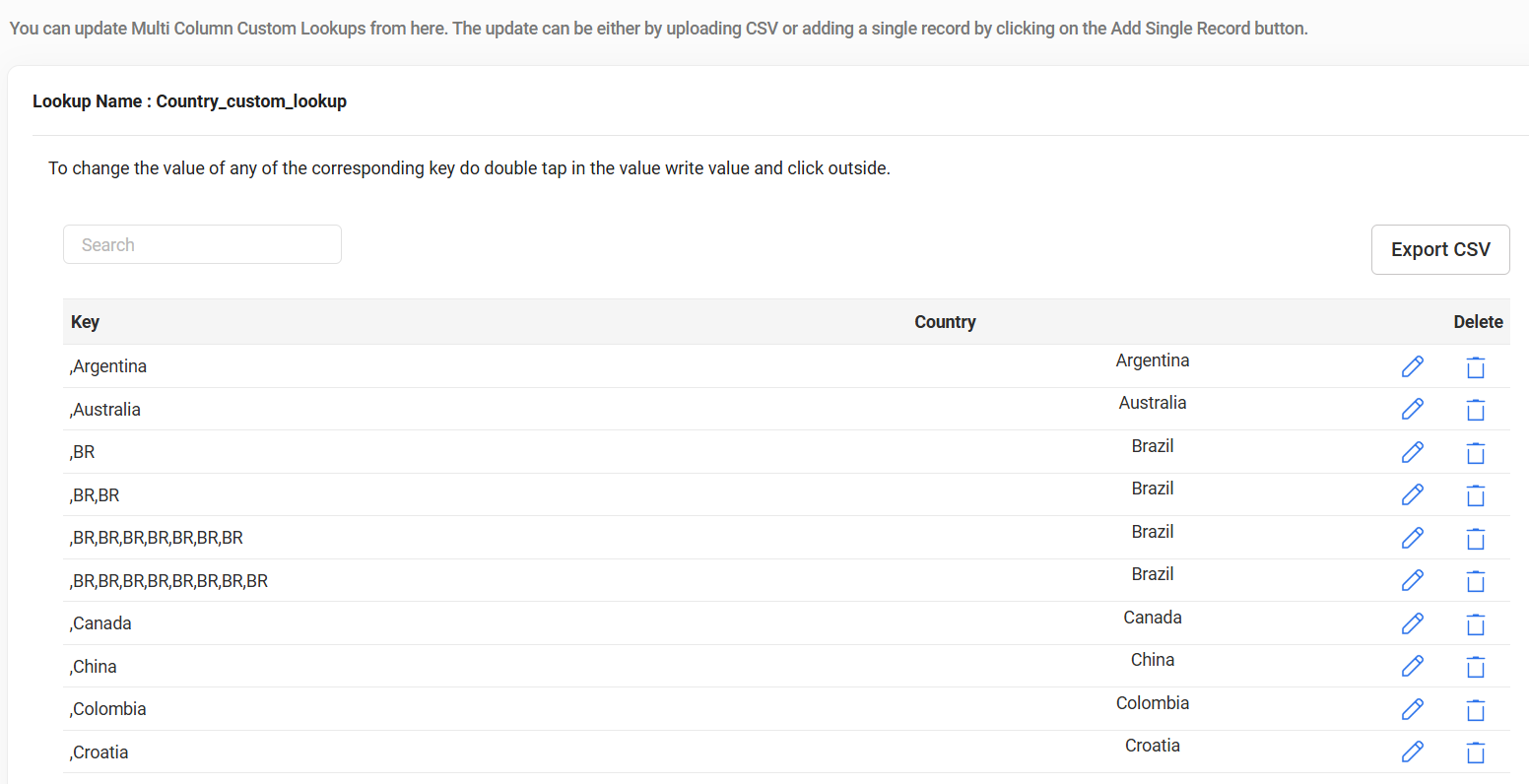
- Edit Lookup: Double-click on a key value to edit it directly in the table.
- Export CSV: Click "Export CSV" to extract the lookup values as a CSV file.
- Change Lookup Details: Update the Lookup Name and Description.
- Add Values via CSV Import: Use this option to import additional data in bulk.
- Add Single Record: Add one record at a time to the lookup.
Using the Custom Lookups Service
The Custom Lookups service can be accessed through two methods: via the API directly, or through JavaScript functions integrated into custom services.
1. Using the Custom Lookups API
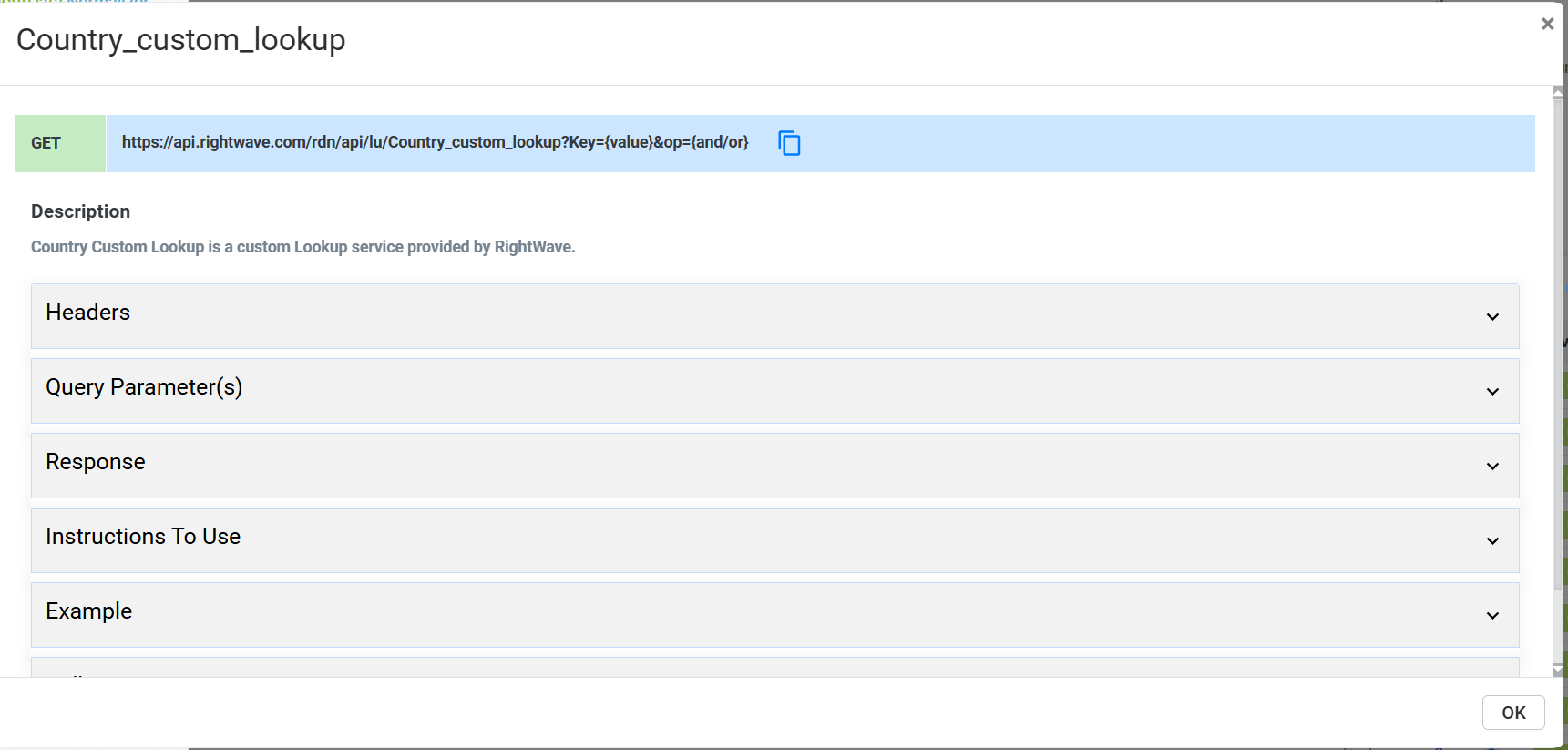
API requests use key columns and operators to query the lookup data.
Key Parameters:
| Parameter | Description |
|---|---|
| Key Columns | The columns you want to query (e.g., Name for a country lookup). |
| op | The operator used to combine conditions: and or or. Defaults to and if not specified. |
Example — Country Lookup with AND
To retrieve country information for Afghanistan:
https://api.rightwave.com/rdn/api/lu/RightWaveCountryLookup?Name=Afghanistan&op=and
Example — Country Lookup with OR
To return results matching either United States or India:
https://api.rightwave.com/rdn/api/lu/RightWaveCountryLookup?Name=United States&ISO_Name=&ISO_Code2=IN&ISO_Code3=IND&op=or
Parameter breakdown:
Name=United States— Filters by country name.ISO_Name=— Empty; no specific ISO name condition.ISO_Code2=IN— Filters by ISO 2-code for India.ISO_Code3=IND— Filters by ISO 3-code for India.op=or— Returns results if any condition matches.
- AND — All conditions must be true for the query to return results.
- OR — Results are returned if at least one condition is true.
- If
opis not specified, the system defaults to AND.
Expected Behavior with OR
The query above will return:
- United States — if the
Nameparameter matches. - India — if
ISO_Code2(IN) orISO_Code3(IND) matches.
2. Using JavaScript Functions
JavaScript functions can be used to integrate custom lookups directly into your services or web applications — ideal for developers building seamless experiences within web-based platforms.
3. Live Test Case Examples
RDN provides the Show Live Test Cases feature, allowing you to test queries and see how changing operators affects the results. Use these examples to experiment with different query configurations before finalizing your requests.
Summary of Key Features
- Flexible Operators: Use
ANDorORto control how conditions are combined. - Customizable Parameters: Provide specific column names and values as request parameters.
- Default AND Operator: If no operator is specified, the system defaults to
AND. - Test Cases: Leverage live examples to refine your queries and get immediate feedback.
Configuring Custom Lookups in Marketo
To integrate Custom Lookups with Marketo, follow the steps below.
Service Name: Custom Lookups
Service Type: Multi-Column Lookups
RightWave offers Country Lookup as a standard service, providing access to ISO_Name, ISO_Code2, and ISO_Code3. For example, providing "United States" as the key returns ISO_Name: United States, ISO_Code2: US, ISO_Code3: USA.
Step 1 — Create a New Webhook
Go to Admin → Webhooks and click New Webhook.
Step 2 — Configure the Webhook
Configure the webhook with the following settings:
| Field | Value |
|---|---|
| Webhook Name | Match the Service name (or use a custom name as needed). |
| URL | The Service Custom Lookups URL — domain and query parameters remain consistent; update parameter values from Marketo. |
| Token | Click Insert Token to add a token. |
| Template | Leave blank. |
| Request Token Encoding | None for POST; uneditable for GET. |
| Response Type | JSON |
| Request Type | GET |
Step 3 — Add Authentication Header
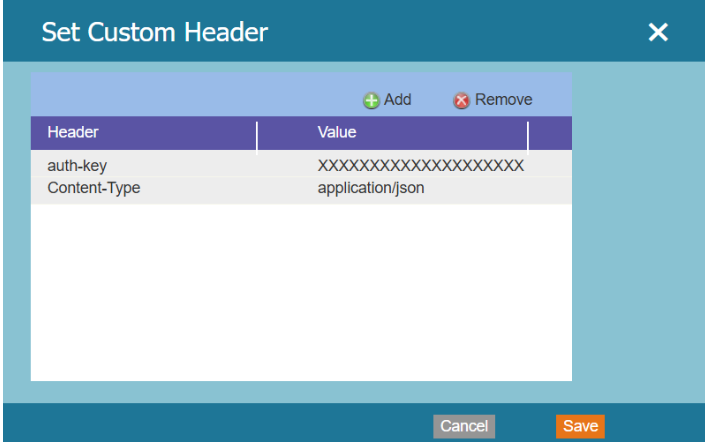
The auth key shown is the authentic authentication key. When configuring the Webhook, use the identical values for both auth-key and Content-Type.
Step 4 — Response Mappings
Response Mappings are generated by associating them with a Response Attribute. The choice of Response Attribute depends on the output from the Custom Service JavaScript function.
Returning JSON from the Custom Service is recommended — it simplifies mapping to corresponding Marketo fields.