Lead-to-Account Matching Service
Overview
The Lead-to-Account Matching Service provides an automated, reliable solution for matching leads to the appropriate accounts using predefined matching rules. This service is available as a REST API, enabling seamless integration into your CRM and marketing workflows.
Requirements
Before using the Lead-to-Account Matching Service, ensure the following are in place:
- Salesforce Integration: Integration with Salesforce (SFDC) is required. The RDN platform must be linked with your Salesforce account to facilitate data synchronization and matching.
- SFDC Connected App: The service relies on a Salesforce Connected Application to authenticate and obtain an OAuth token for accessing Salesforce data via REST and Metadata APIs.
Setting Up Salesforce Integration
SFDC Connected App Setup
RDN authenticates with Salesforce by creating a Connected App. This enables RDN to obtain an OAuth token and connect to Salesforce.
To create an SFDC Connected App, follow the steps outlined in Menu Admin → SFDC Connected App in Salesforce.
SFDC Connection
After creating the SFDC app, configure the connection in RDN using the following details:
- Client ID & Client Secret: Obtain these from your Connected App configuration in Salesforce.
- Instance Type: Select either Sandbox or Production depending on your environment.
- Custom Login URL: Check this box if you use a custom login URL and provide the URL.
- Example:
https://abc--partial.sandbox.my.salesforce.com
- Example:
These credentials establish a secure connection between RDN and Salesforce for Lead-to-Account matching.
Steps to Create a Lead-to-Account Matching Service
Step 1 — Create a New Service
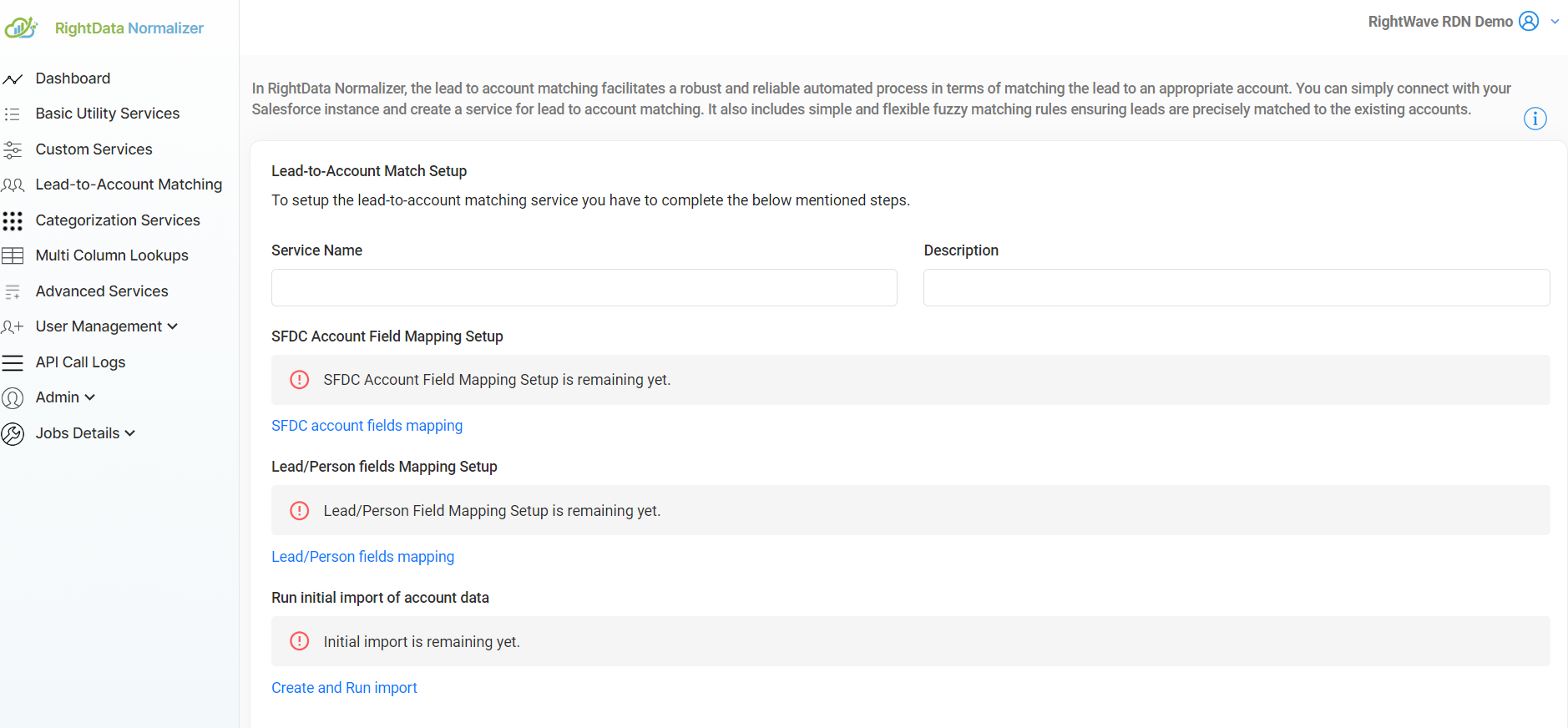
In RDN, navigate to the Lead-to-Account Matching Service section and click the "+" button to create a new service.
- Service Name: Enter an alphanumeric name (spaces are not allowed).
- Description: Provide a brief description of the service.
Step 2 — SFDC Account Field Mapping
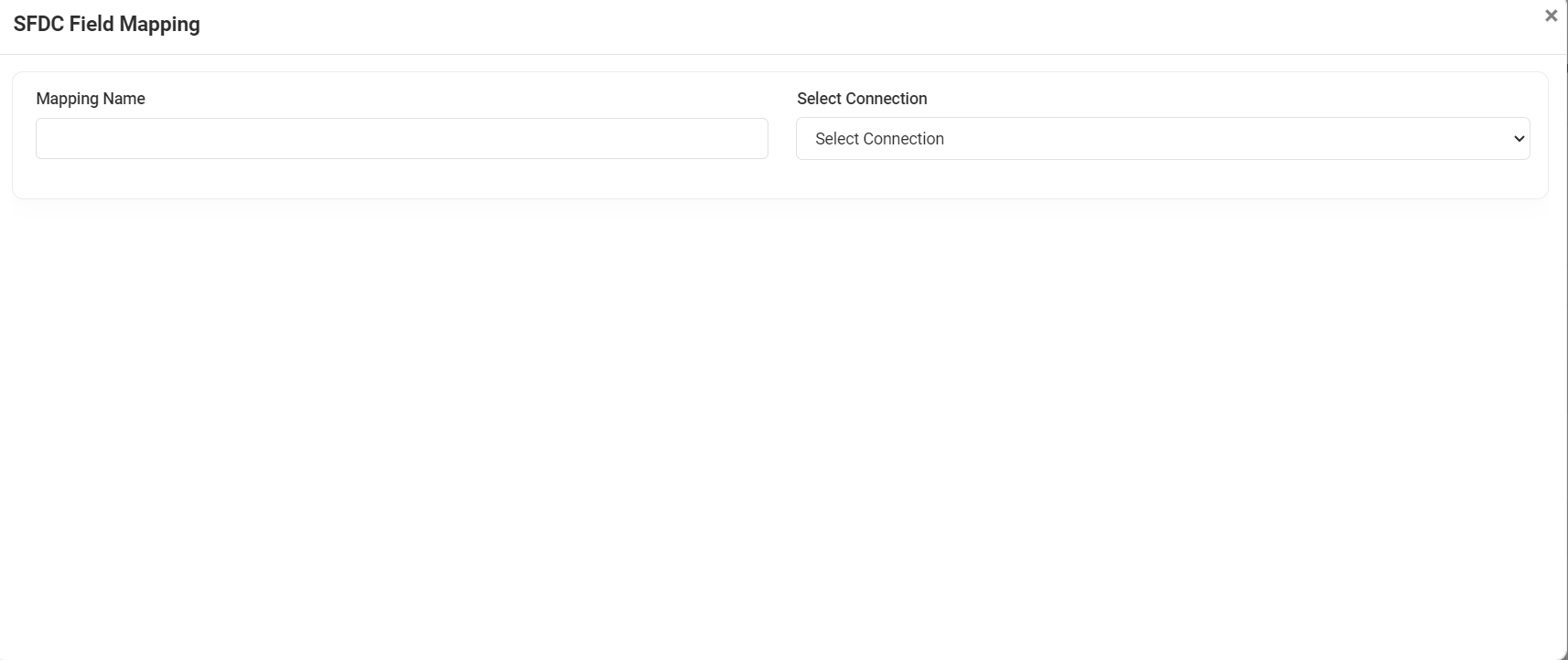
Click the "SFDC Account Field Mapping" link to configure the mapping between Salesforce fields and RDN fields.
- Enter a Mapping Name and select the Connection from the dropdown list.
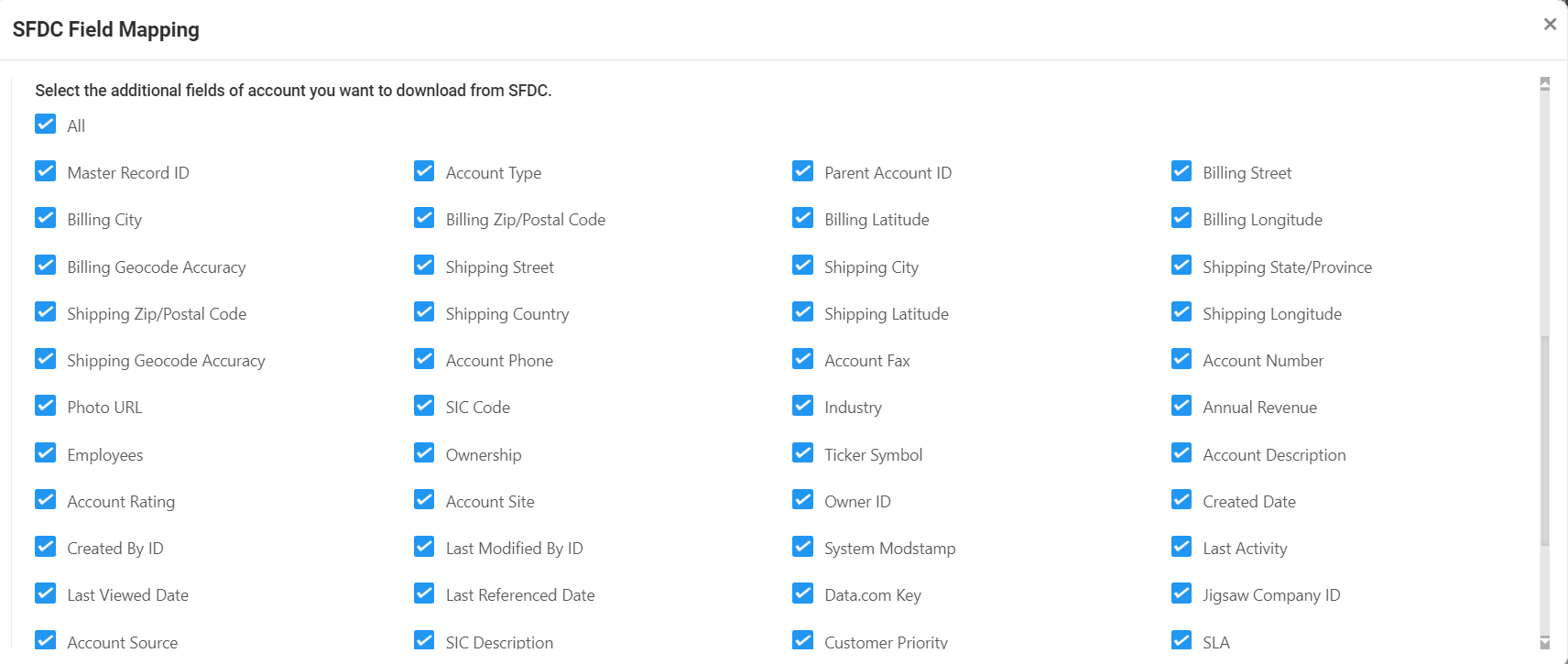
- Select the SFDC Field Mapping as per your requirement and click Save.
Step 3 — Lead/Person Field Mapping
Click the "Lead/Person Field Mapping" link to configure the mapping between RDN fields and input fields for the API request parameters.
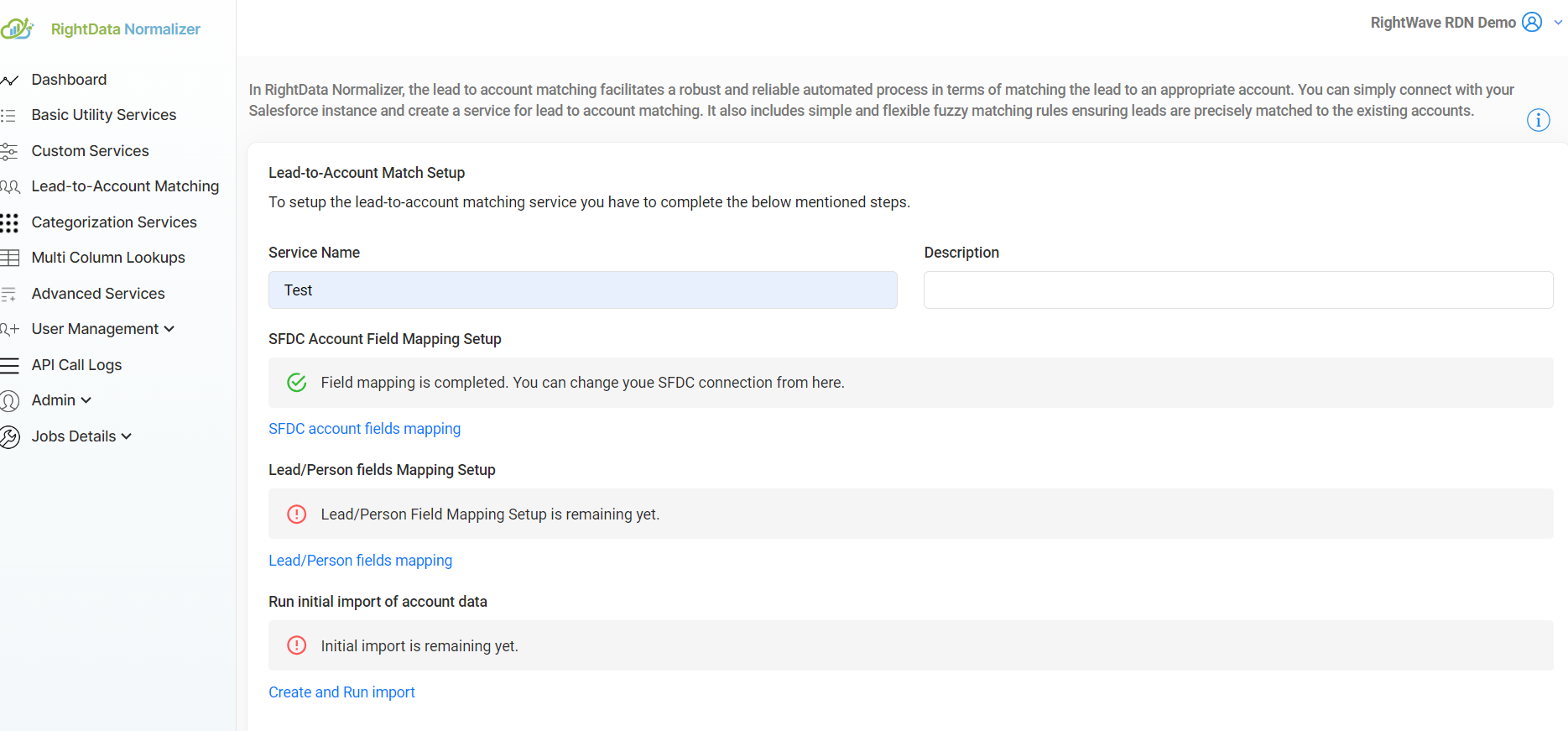
Enter the required details and Save the mappings.
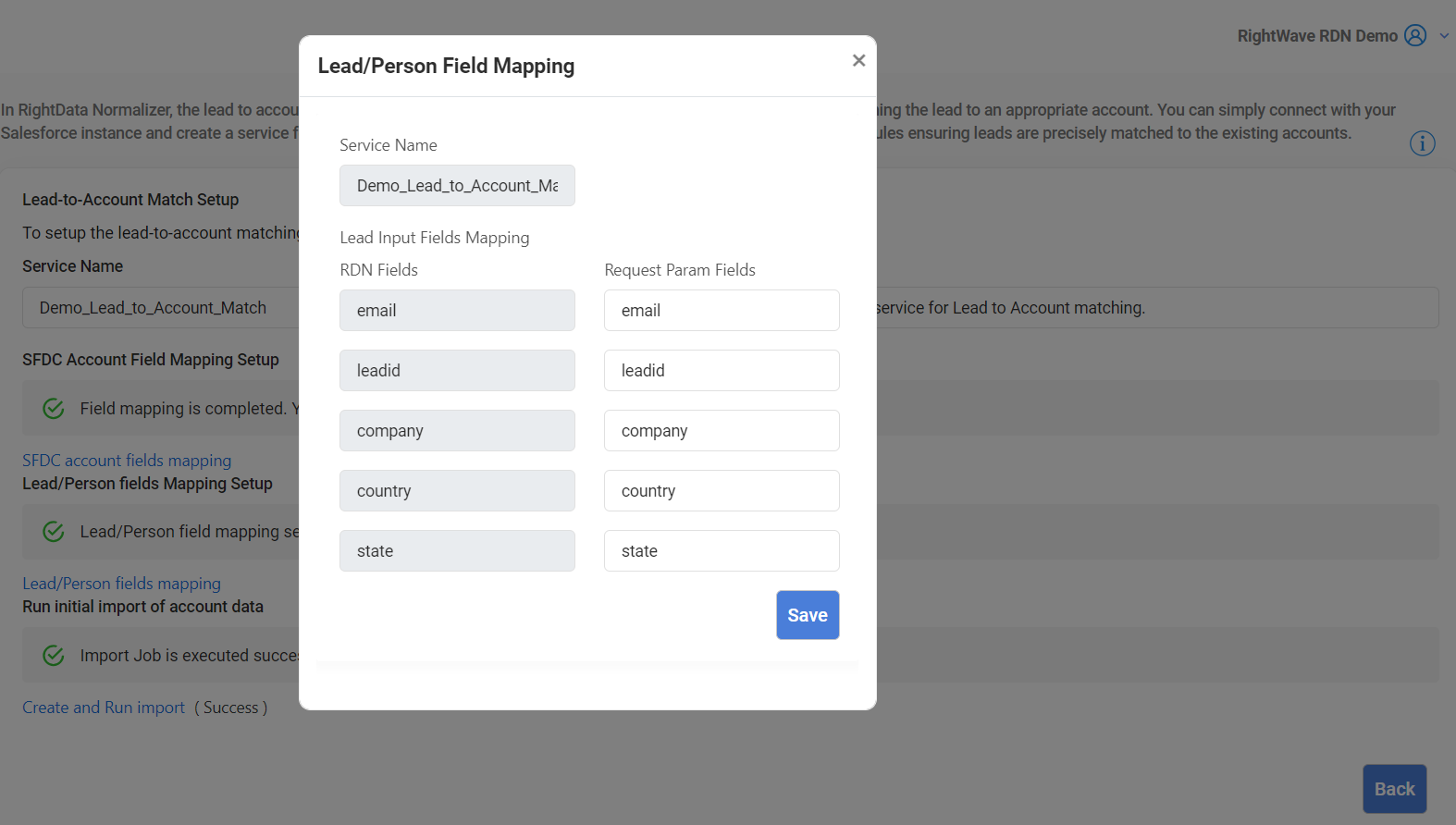
Step 4 — Import Account Data
After configuring the field mappings, schedule an initial account data import to bring the necessary account data into RDN.
Select a Date Range (Start Date and End Date) for the import, and choose one of the following import options:
- 🔄 Upsert (Default)
- 🗑️ Drop & Replace
Updates existing records with new data and inserts any missing records. Ensures account data is accurate by updating changes and adding new entries.
Deletes all current account data and imports the latest data, replacing old records entirely with fresh data. Ensures only the most recent information is available.
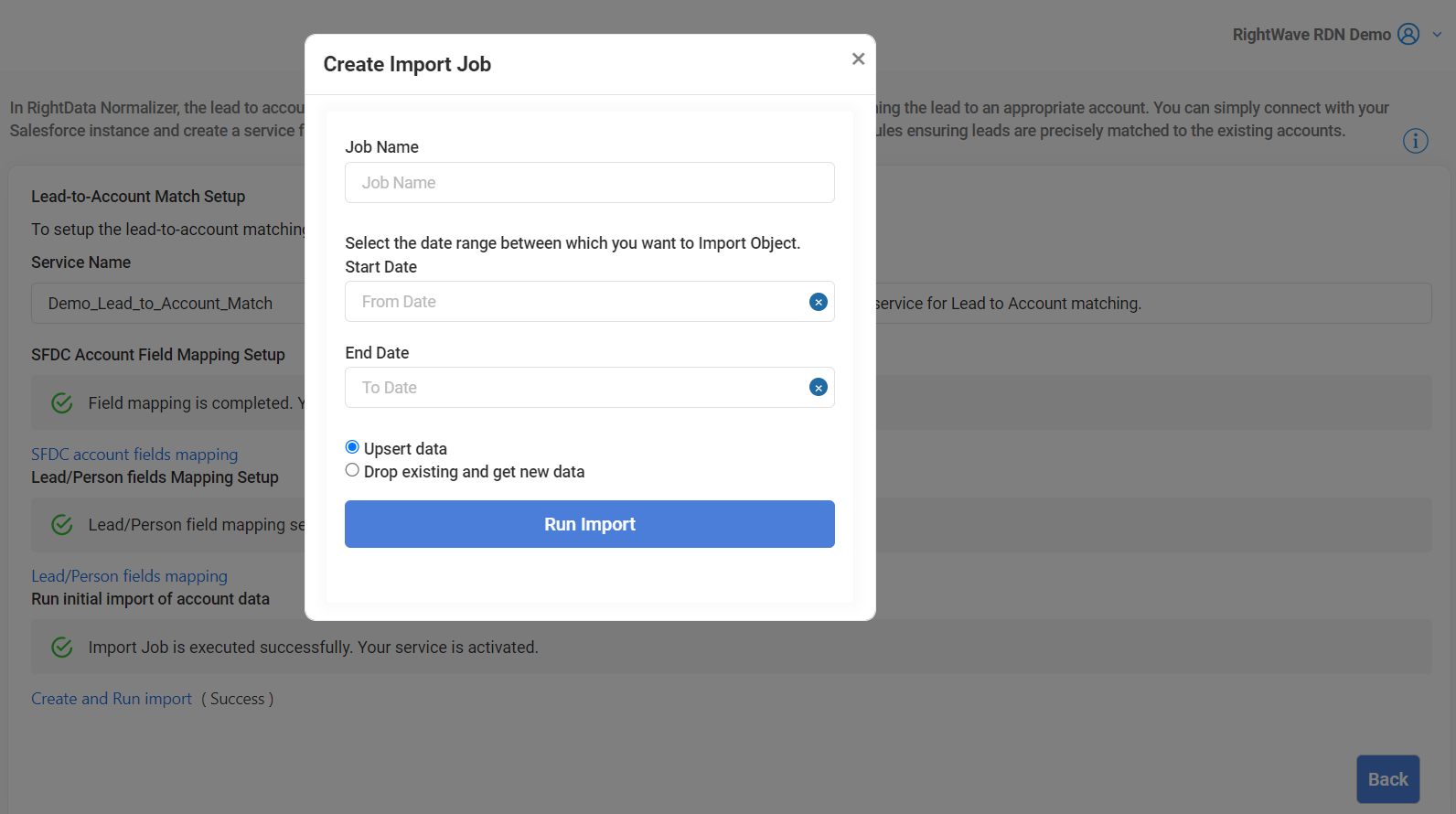
Click the "Run Import" button to schedule the import process.
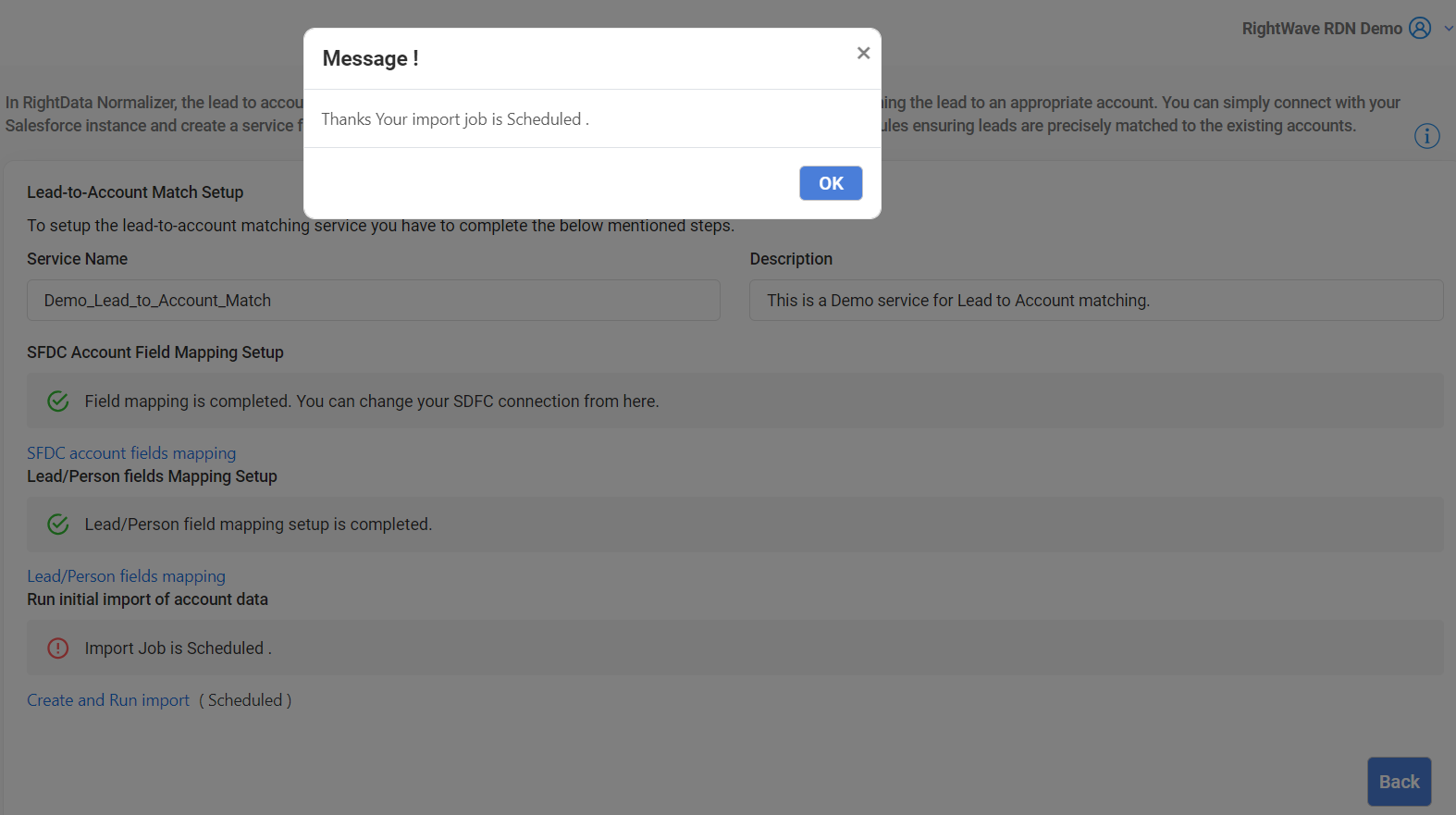
Once all three steps are completed, the mapping and setup will be marked as done.
Real-Time Data Capture
To capture real-time changes in Salesforce account data, configure the Salesforce Real-time Data Capture feature:
- Navigate to Setup in Salesforce.
- In the Quick Find/Search Box, type
Change Data Capture. - Under the Change Data Capture section, select the Account object from the Available Entities list and move it to the Selected Entities list.
- Click Save.
Salesforce will now automatically notify RDN of changes made to Account data (e.g., new records, updates, deletions), ensuring real-time synchronization with RDN.
Managing Mapping Changes
If you need to modify field mappings in the future (e.g., adding or removing fields), you can edit existing mappings at any time.
When editing a mapping, RDN will highlight the modified flow step in orange to indicate that changes have been made.
If fields are added or removed, you will be prompted with the following options:
- Refresh Data — Import updated data after changes to the mapping.
- It's Okay — Proceed without a refresh or upsert.
- Schedule Import — Manually schedule the import process if data needs to be refreshed or upserted.
Service Details
The Lead-to-Account Matching Service list displays the following details for each configured service:
| Field | Description |
|---|---|
| Service Name | The unique name of the service for easy identification. |
| Description | A brief explanation of the service functionality and purpose. |
| API Details | Endpoint information, including parameters and expected responses for programmatic access. |
| Edit | Option to modify the service configuration and settings. |
| Delete | Option to remove the service from the system. |
| Auto Sync | Enables automatic synchronization of account data between Salesforce and RDN for real-time updates. |
| Active | Indicates whether the service is currently active and operational. |
| Import History | A log of all previous account data imports, including success and failure records. |
Matching Rules
The service applies the following prioritized rules to match leads to accounts:
company_country_state_Matchcompanycleanbusinessname_country_state_Matchcompany_country_Matchcompanycleanbusinessname_country_Matchcompany_Matchcompanycleanbusinessname_Matchemaildomain_country_state_Matchemaildomain_country_Matchemaildomain_Match
Rules are applied in order — the first matching rule wins. More specific rules (with country + state) take priority over broader ones.
Conclusion
The Lead-to-Account Matching Service is a crucial tool for ensuring accurate lead-to-account matching within your CRM system. By integrating Salesforce with RDN, configuring the necessary mappings, and enabling real-time data capture, the service automatically synchronizes and matches leads to accounts. The flexible setup ensures that your account data is continuously updated, enabling a seamless lead management process.