Cleansing and Transformation Service
Introduction
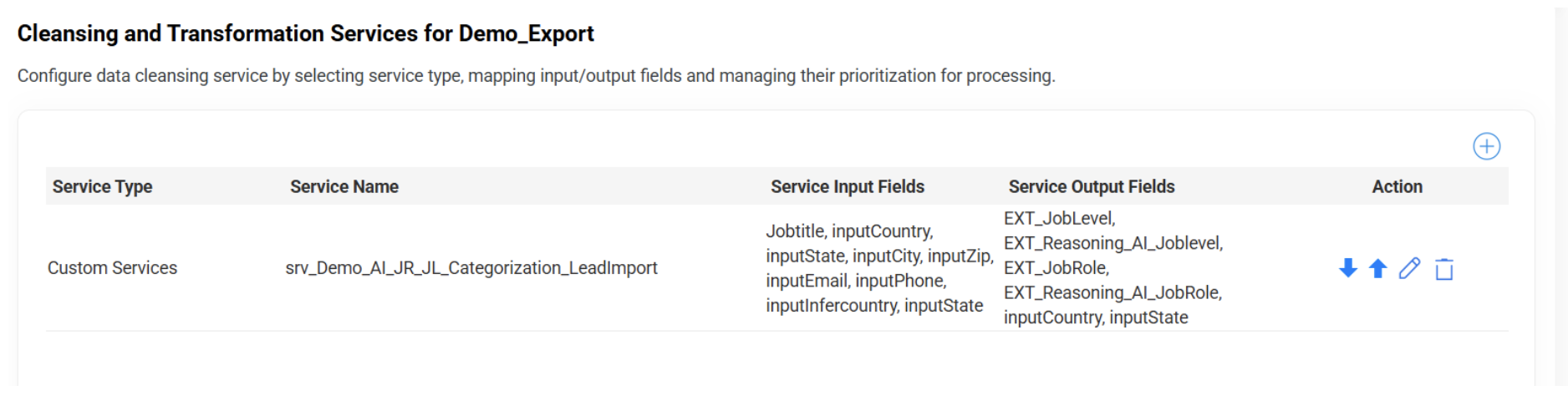
The Cleansing and Transformation Service allows users to enhance data quality during the lead import process by applying rule-based transformations, standardization, and error handling logic. This ensures that data is categorized and normalized before it reaches the final destination fields in your CRM or marketing automation platform.
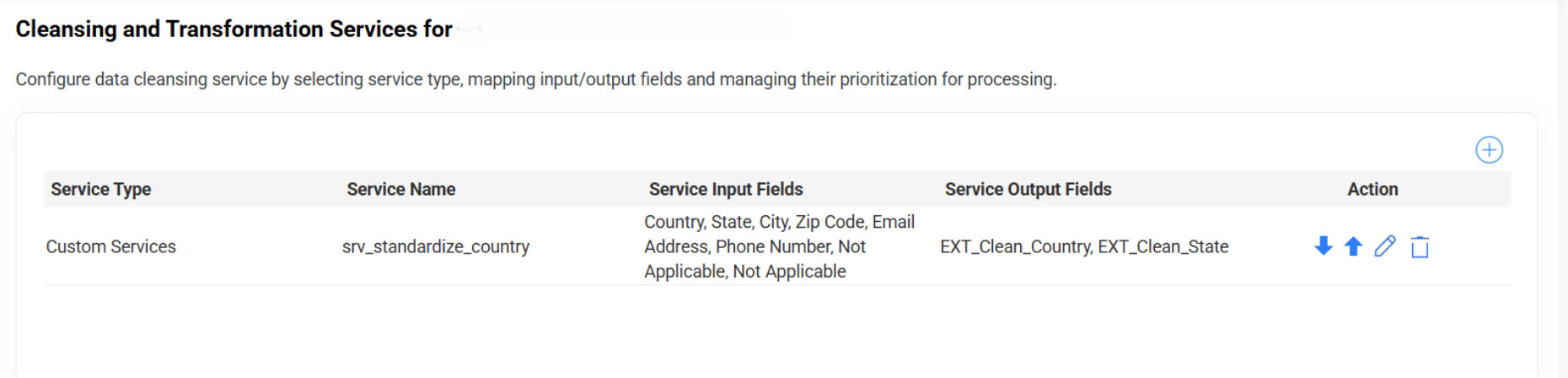
Configure data cleansing service by selecting service type, mapping input/output fields, and managing their prioritization for processing.
Purpose of this Service
This service allows you to:
- Categorize raw input values (e.g., Job Titles) into structured fields like Job Role and Job Level.
- Apply AI/logic-driven transformations.
- Detect and flag data inconsistencies or errors.
- Map outputs to specific destination fields for downstream processing.
Steps to use the Cleansing and Transformation Service
1. Click on the '+' icon to apply the cleansing and transformation service. This will open a new service configuration form.
2. Select the services along with input and destination fields as required.
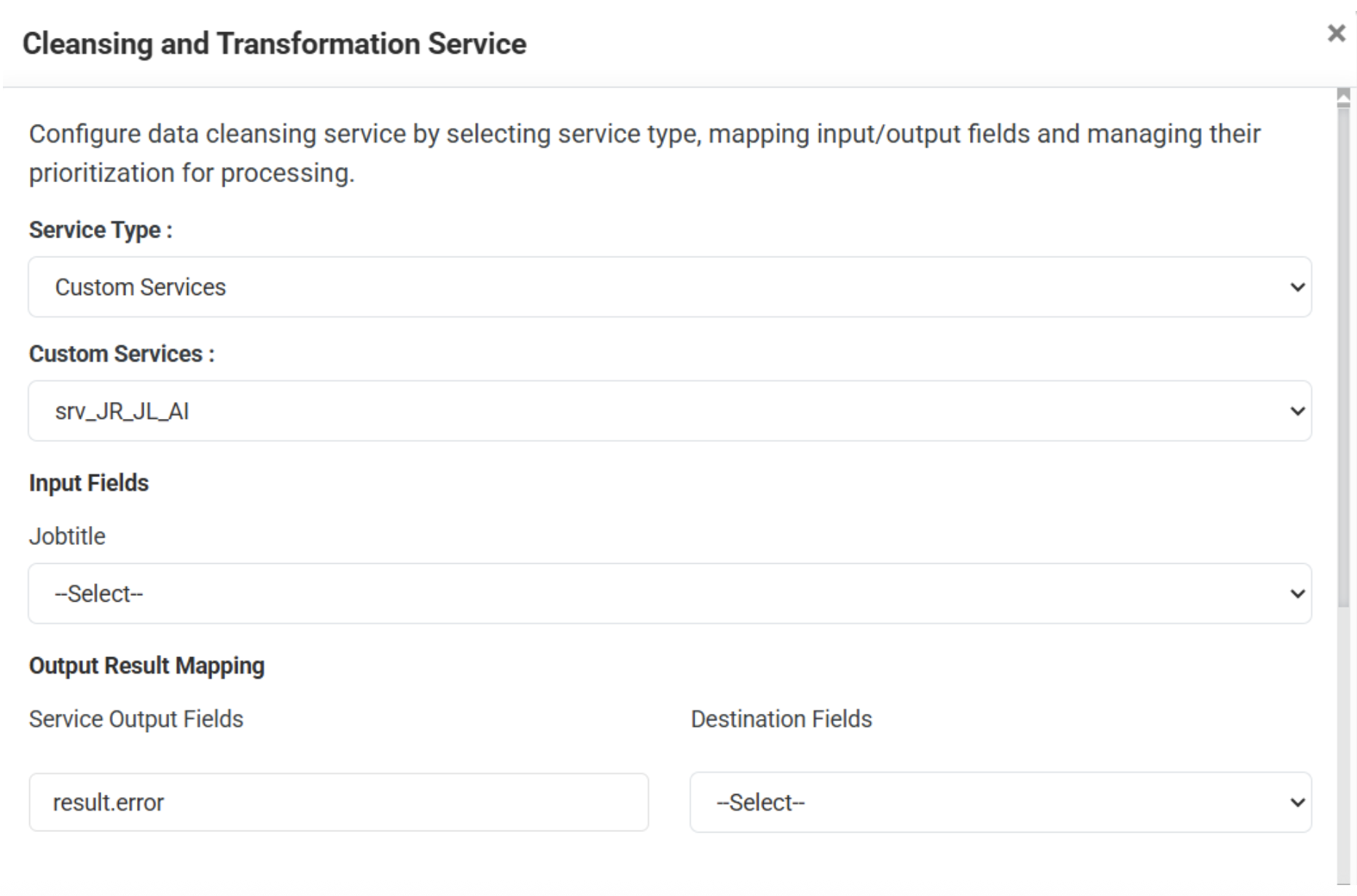
- Service Type — Select the type of service on which transformation or cleansing is to be applied, e.g., categorize a Job Title into distinct components like JobRole and JobLevel.
- Service Name — Select the service name based on the service type selected, like JobRole and JobLevel Categorization.
- Input Fields — Select the fields used as input to the service, such as JobTitle.
- Service Output Fields — Enter the fields produced after processing, e.g., JobRole and JobLevel.
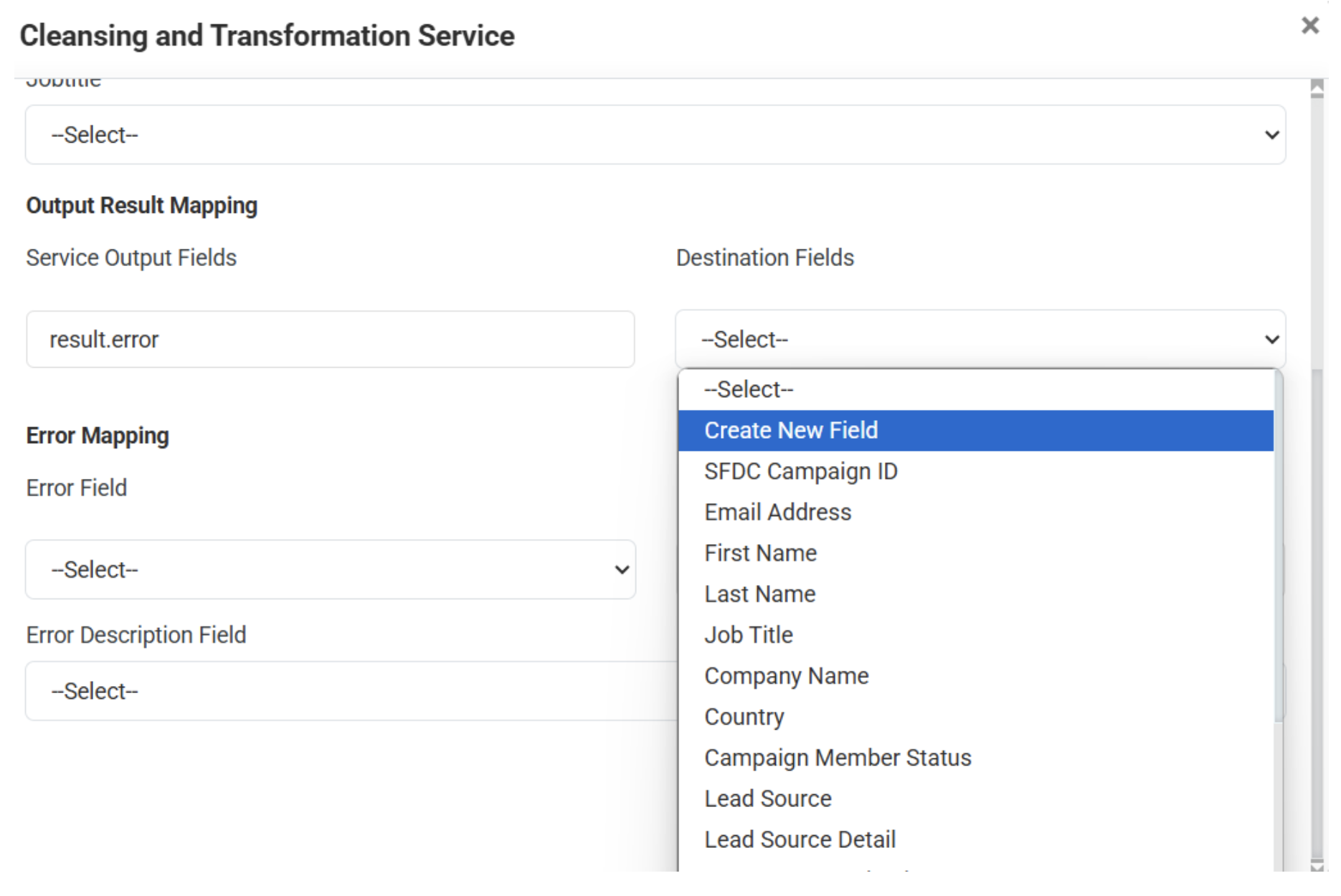
- Destination Fields — Select the destination fields for the service output field selected.
- Error Field — Select the field from the service output to monitor for error conditions (e.g., 'result.status').
- Error Value — Set the error value that indicates an error (e.g., 'invalid'). Records with this value will be flagged or handled accordingly.
- Error Description Field — Select the field from the service output that provides the error description (e.g., 'result.status'). The value from this field will be recorded in the 'Service Error' column of the output file.
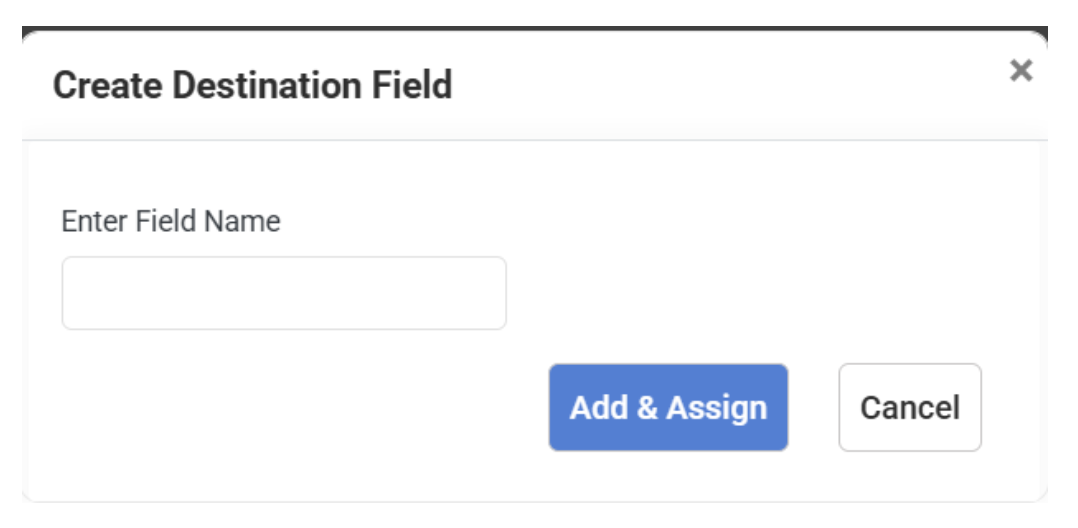
3. To create a destination field if not in the list, select 'Create New Field' from the dropdown and enter a field name.
- Click on the 'Add & Assign' button. Click the Save button after all configurations are selected.
4. Rearrange the priorities by clicking the upward and downward arrow buttons, if required.