RDN Lead Import User Guide
1. Overview
The RDN Lead Import module offers a comprehensive, end-to-end solution for ingesting, validating, cleansing, transforming, and integrating lead data into leading Marketing Automation platforms, such as Marketo.
Designed with flexibility and data quality in mind, the module supports a highly configurable workflow that allows users to tailor the import process to their unique organizational requirements.
Key Capabilities
- Data Cleansing & Validation: Automatically validates input files (CSV/XLS/XLSX) against configurable rules such as mandatory fields, valid email formats, country/state picklists, and junk data detection. Invalid records are captured in a rejection file with detailed error reasons.
- Reusable Templates: Define reusable Lead Import Templates including field mappings, default values, validation logic, transformation services, and export configurations—eliminating repetitive setup.
- Field-Level & Global Rules: Apply field-level rules (e.g., update only if blank) and row-level global import rules (e.g., Insert Only, Upsert) to control external system writing.
- Cleansing and Transformation Services: Enrich data, standardize values (e.g., Job Title to Job Role), and perform text manipulations like trimming whitespace and enforcing casing.
- Flexible Import Modes: Choose between Clean-Only mode (validation only) and Clean & Export mode (direct push to platforms like Marketo).
- Dynamic Field Management: Manage fields with support for mandatory checks, picklists, default values, and duplicate detection based on Email or Lead ID.
- Export Configuration: Customize how data is exported to target platforms, including platform field mapping.
- Monitoring & Reporting: Monitor progress via the status page, download cleaned/rejected files, and receive email notifications with summary statistics.
2. Lead Import Process Workflow
The RDN Lead Import process follows a structured, 9-step workflow:
- Create Template: Define reusable configurations for mappings and validations.
- Initialize Fields: Upload a file to auto-detect and map fields based on headers.
- Configure Properties: Define field types (Email, Country), column mappings, and mandatory rules.
- Apply Validations: Configure format validations, picklists, and junk-value detection.
- Apply Services: Set up rule-based transformations (e.g., job title categorization).
- Quick Test (Recommended): Run a test on 2-5 records to verify logic before a full run.
- Select Mode: Choose between Clean-Only or Clean & Export.
- Run Project: Create a project using the template and execute the process.
- Review Output: Download cleaned/rejected data and monitor execution via the dashboard.
3. Lead Import Template Management
Define reusable templates with field mappings, transformation rules, and export configurations.
Creating a Template
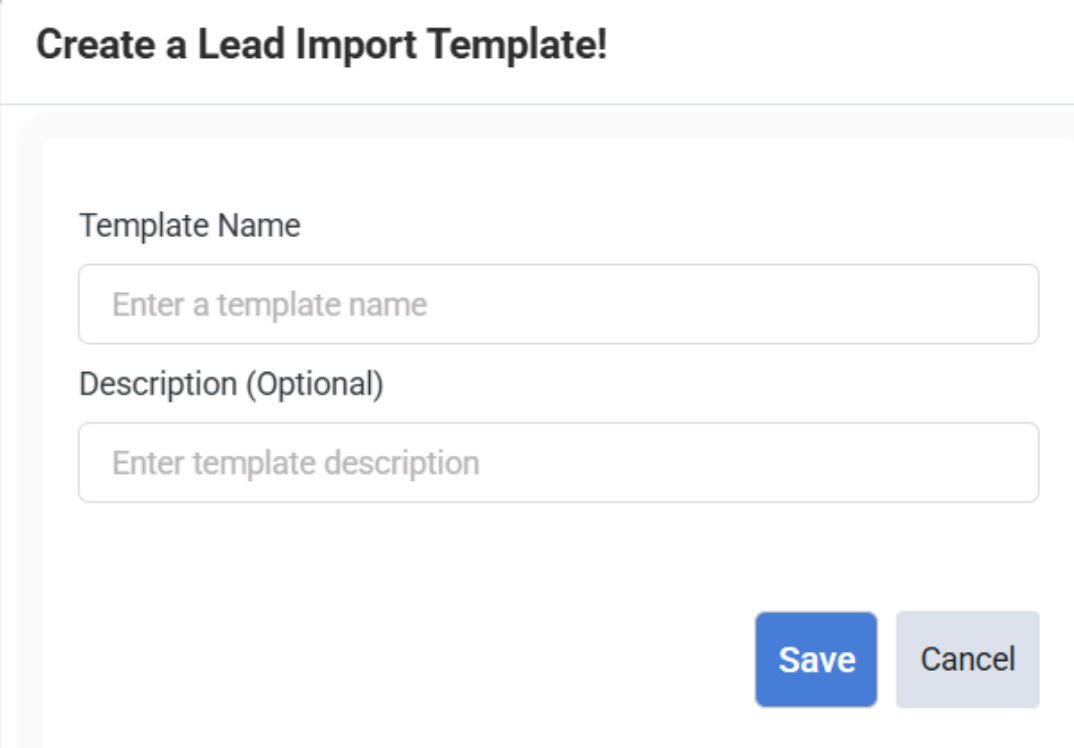
Navigate to the Lead Import module and choose Lead Import Template. Click the "+" icon to add a new template, then enter the name and description.
Initializing Fields
Initialize fields by clicking on the "+" icon.
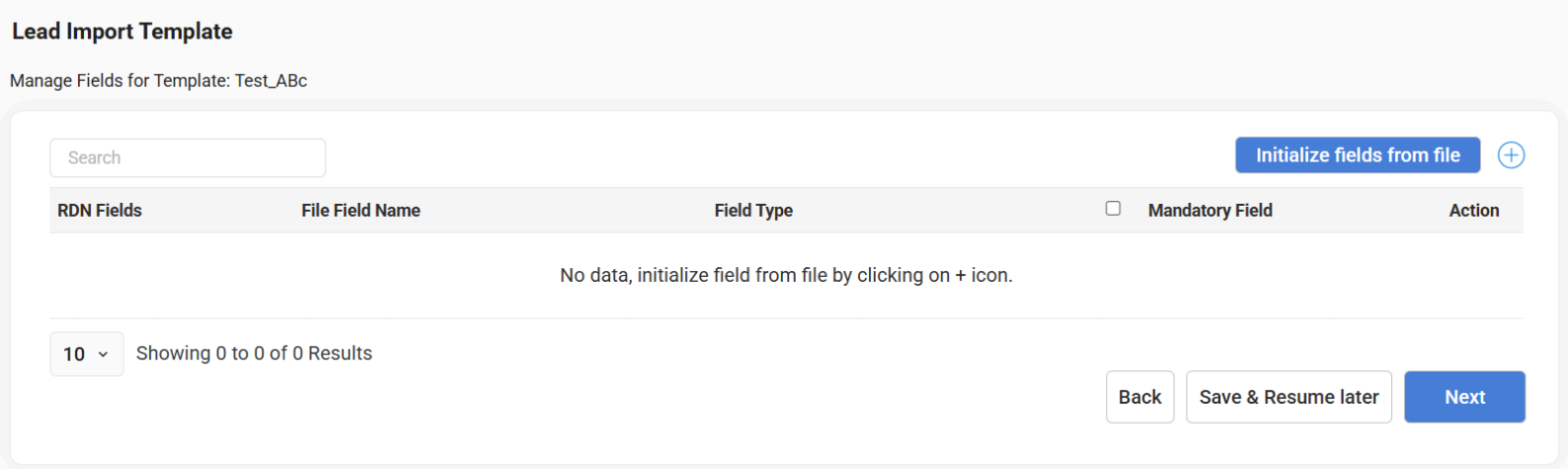
- 📂 Initialize from File
- ✍️ Manual Setup
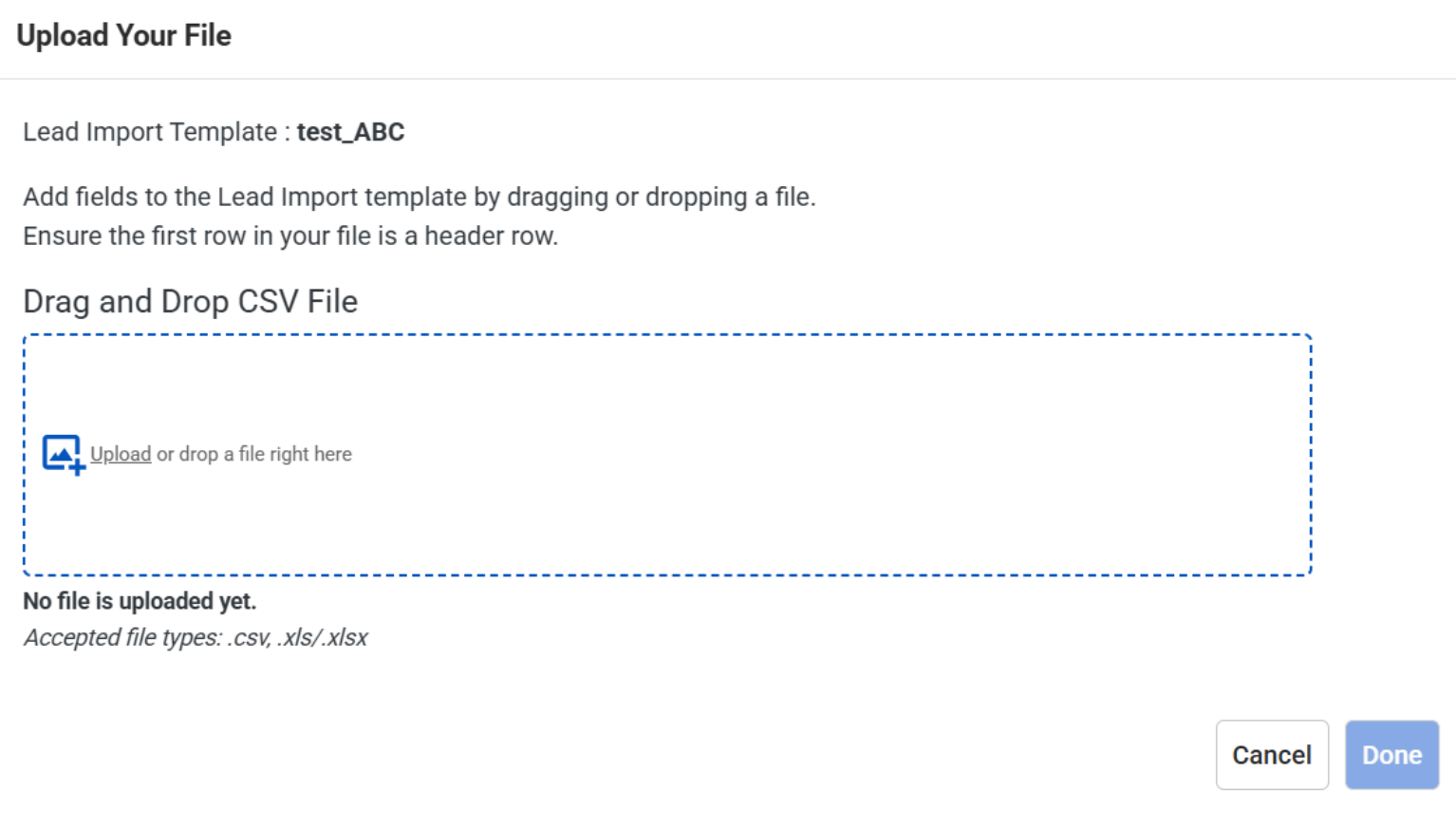
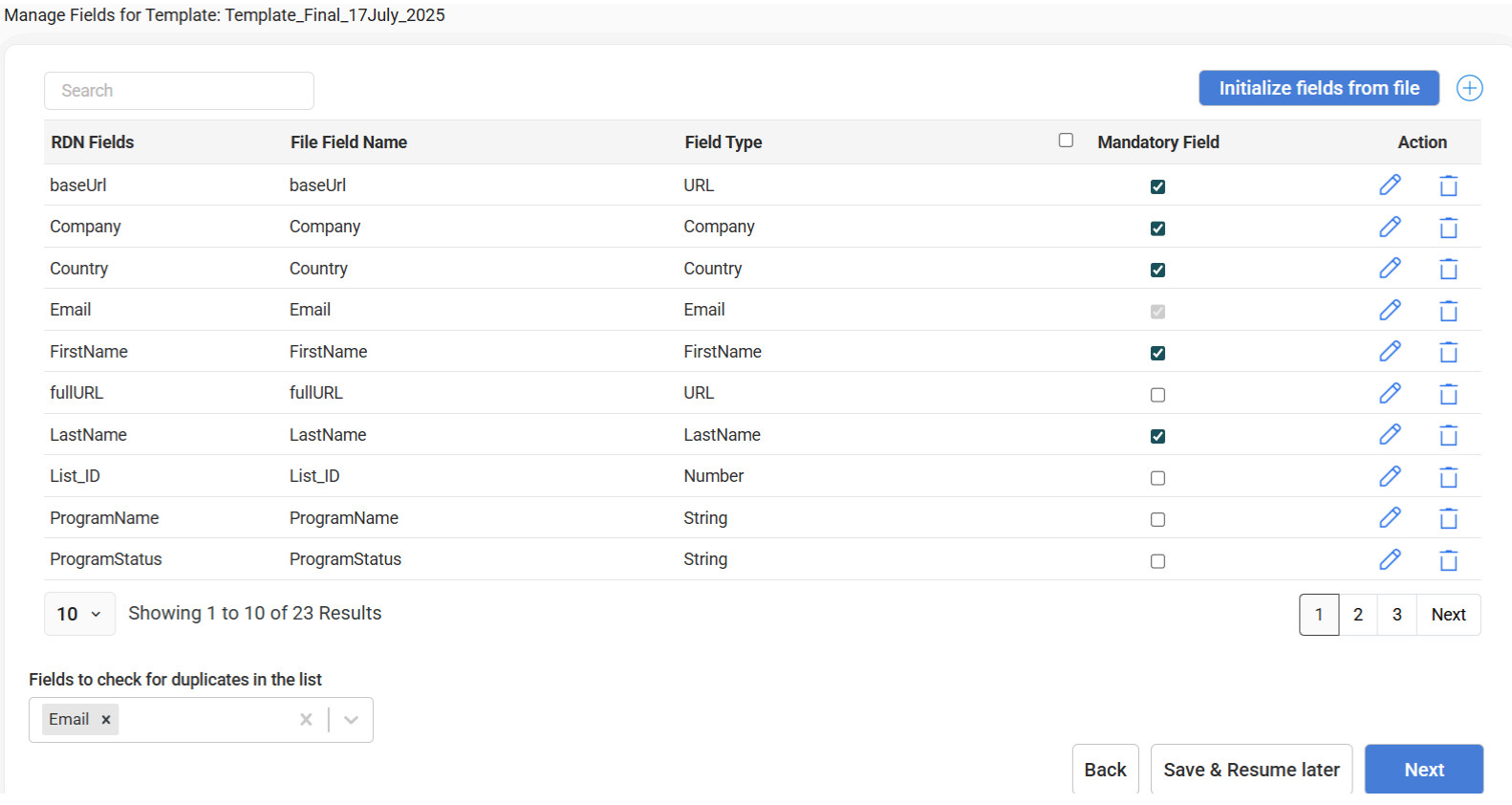
Click the 'Initialize Fields from File' button. Supports .xls and .csv. The system scans the header row and attempts to match columns to known fields.
Click the "+" icon to add fields one by one. Specify the field name, data type, and mapping target. Use this for building from scratch or for derived fields like static values.
After initializing, use the "Fields to check for duplicates in the list" dropdown to select the keys (Email, Lead ID) used to flag duplicate records during cleansing.
4. Field Properties and Validations
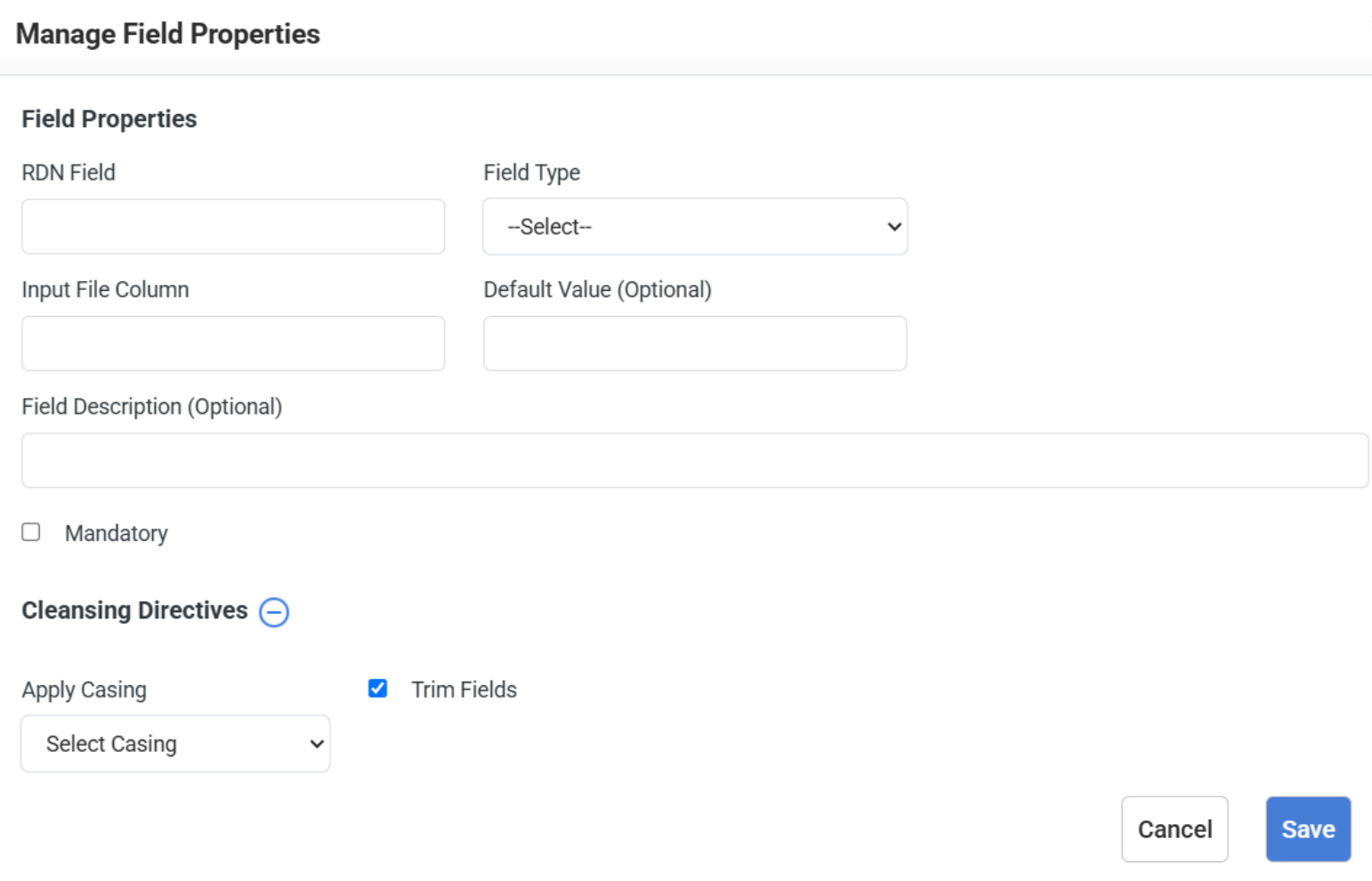
Click the edit icon under the Action header to manage properties and directives.
Field Properties
- RDN Field: The internal name used in RDN.
- Field Type: Select the data type (Country, Email, Phone) to help in validation.
- Input File Column: Enter variation headers (comma-separated).
- Default Value: Value used if the input cell is blank.
- Mandatory Field: Records missing this value will be rejected.
- Note: For "State" type, options include 'Always Mandatory' and 'Mandatory for countries'.
Validations & Cleansing Directives
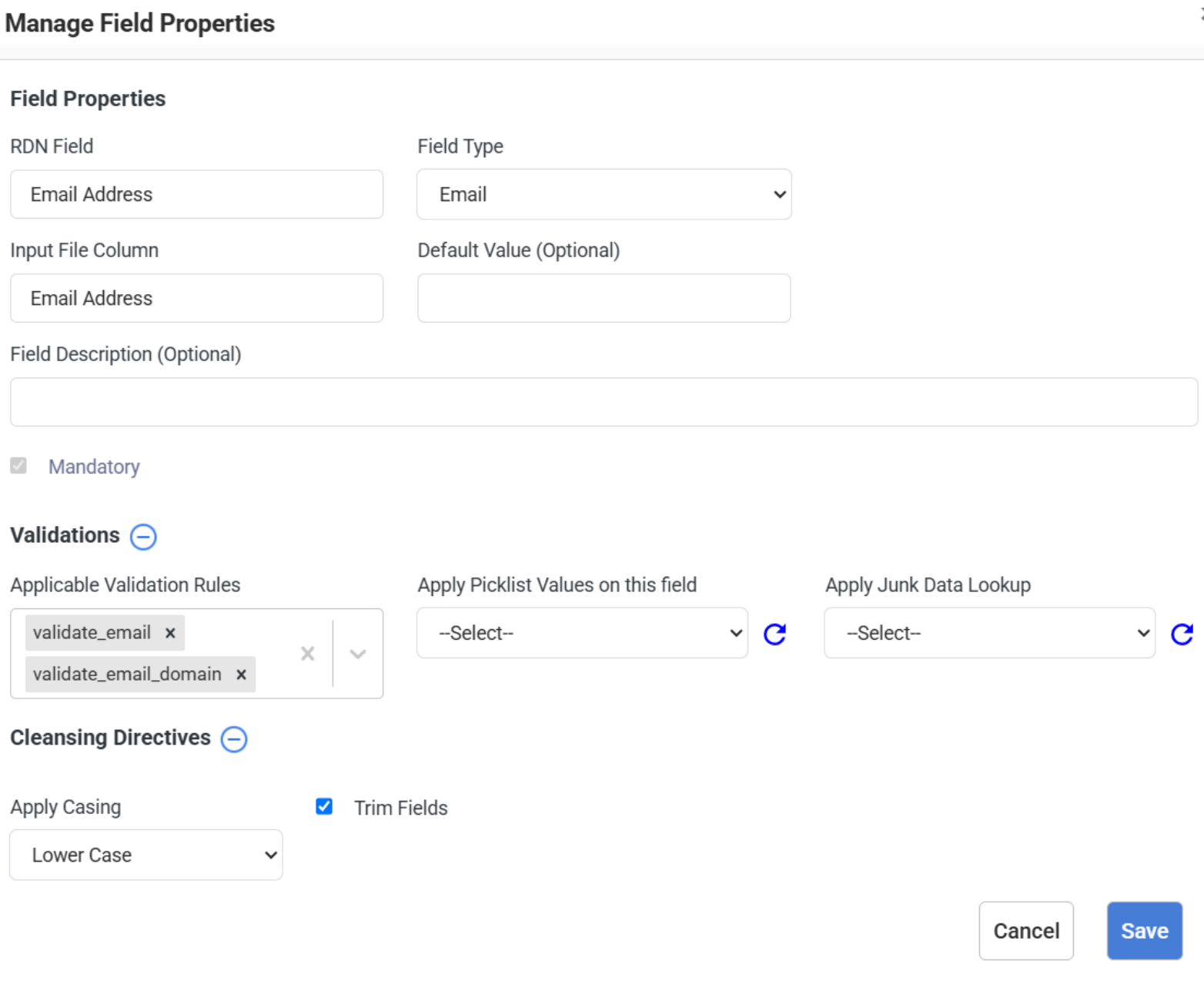
Validation rules enforce consistency. For Email and Phone, default rules are applied automatically.
Lookups & Junk Data
- 🔍 Custom Lookups
- 🗑️ Junk Lookups
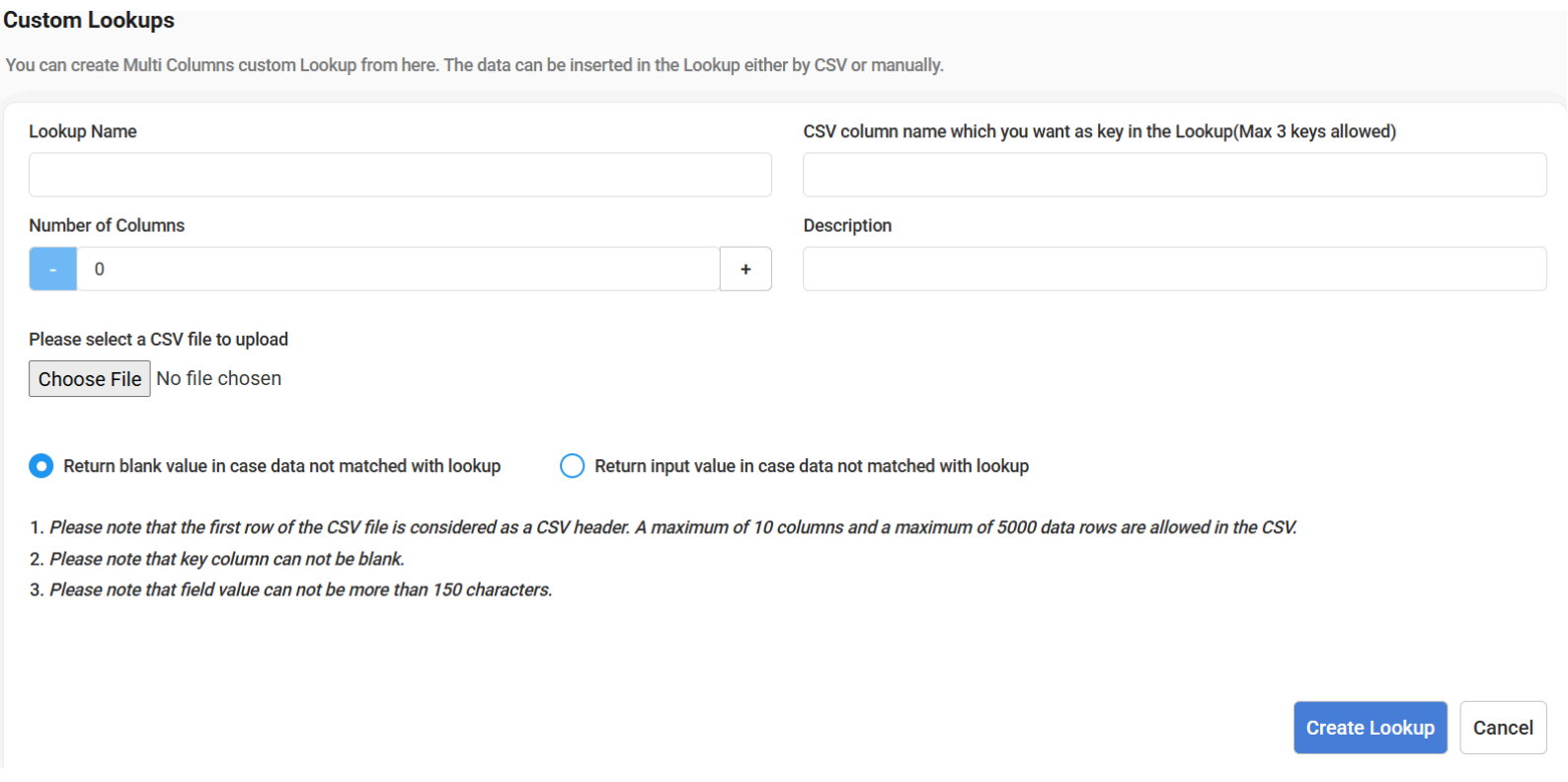
- Click Create a New Custom Lookup.
- Enter Lookup Name and File Column keys (max 3).
- Upload CSV (Max 10 columns, 5000 rows, 150 chars per value).
- Select "Return blank value" or "Return input value" for no-match scenarios.
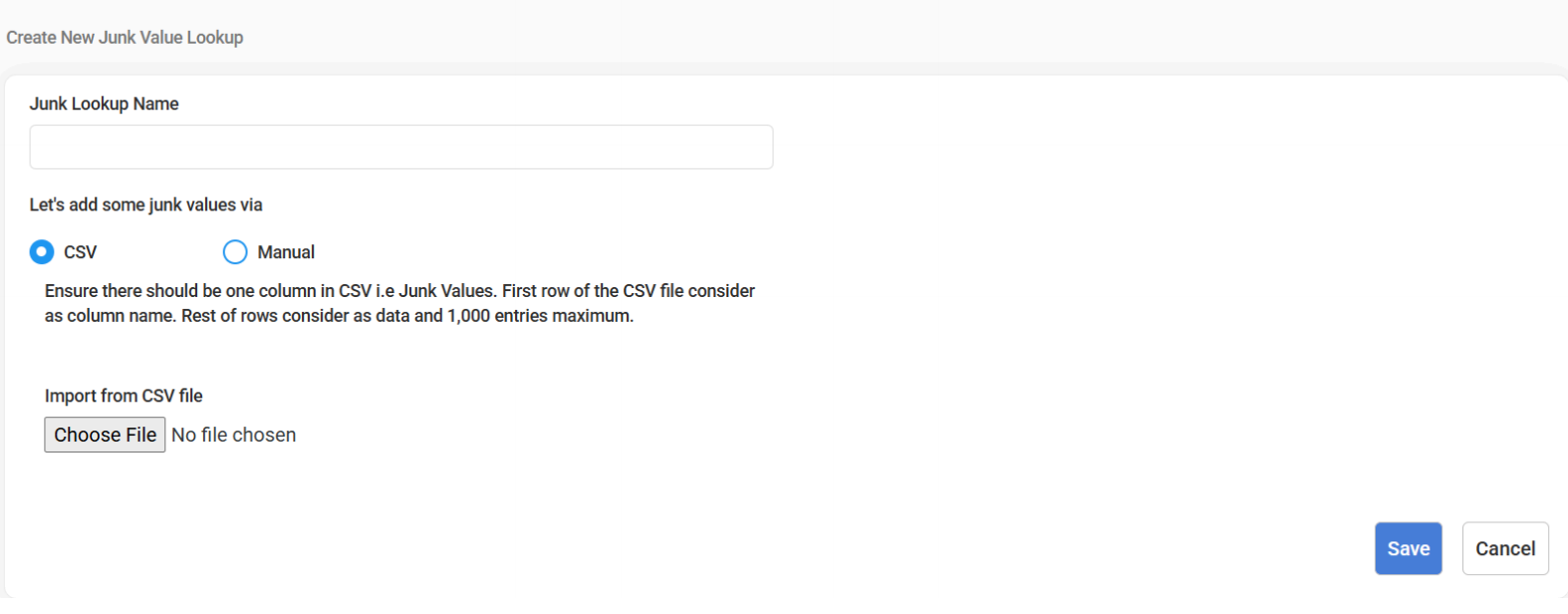
- Click 'Create new Junk Lookup'.
- Select CSV or Manual mode (Max 1000 entries).
- Records matching these values will be rejected.
- Apply Casing: Options: UPPERCASE, lowercase, Title Case.
- Trim Fields: Removes leading/trailing whitespace.
5. Cleansing and Transformation Services
Designed to standardize, enrich, and validate lead data before export.
Service Types
- Basic Utility: Reverse String, Substring, Count Characters, Email Syntax, Domain from Email, Date manipulation.
- Lead-to-Account Matching: Matches incoming leads to existing accounts.
- Multi Column Lookups: Uses Standard and Custom Multi Column Lookups.
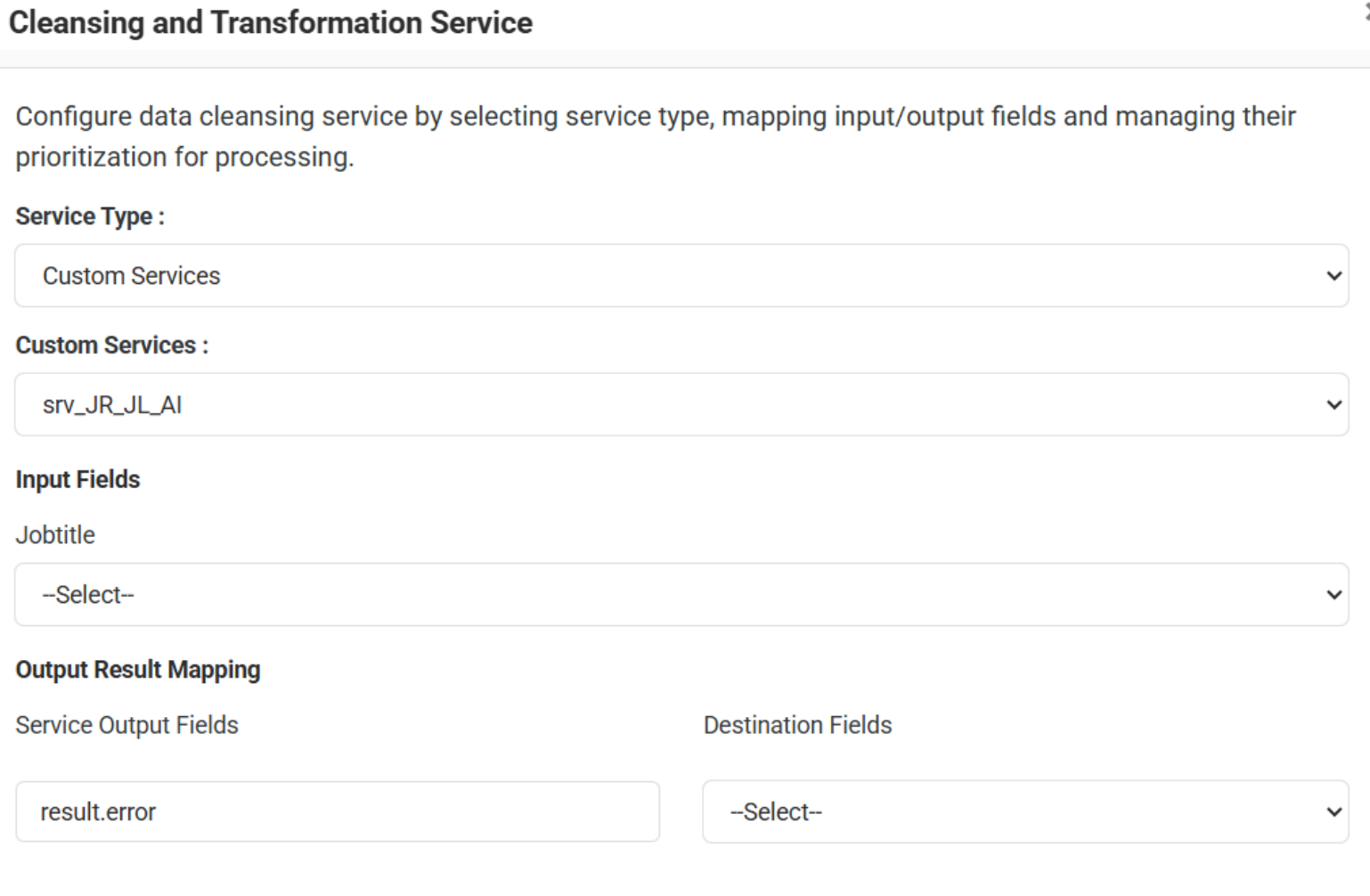
- Custom Service: Specialized services like demographic scores or ISP domain checks.
Input/Output and Prioritization
- Extracted Fields: Created to avoid modifying original inputs; remains available throughout the workflow.
- Error Mapping: Map output fields (e.g.,
result.status) to an error value (e.g.,invalid) to record details in the 'Service Error' column. - Prioritization: Use Up/Down arrows to rearrange order. If Service B depends on Service A, Service A must be higher in the list.
6. Quick Test
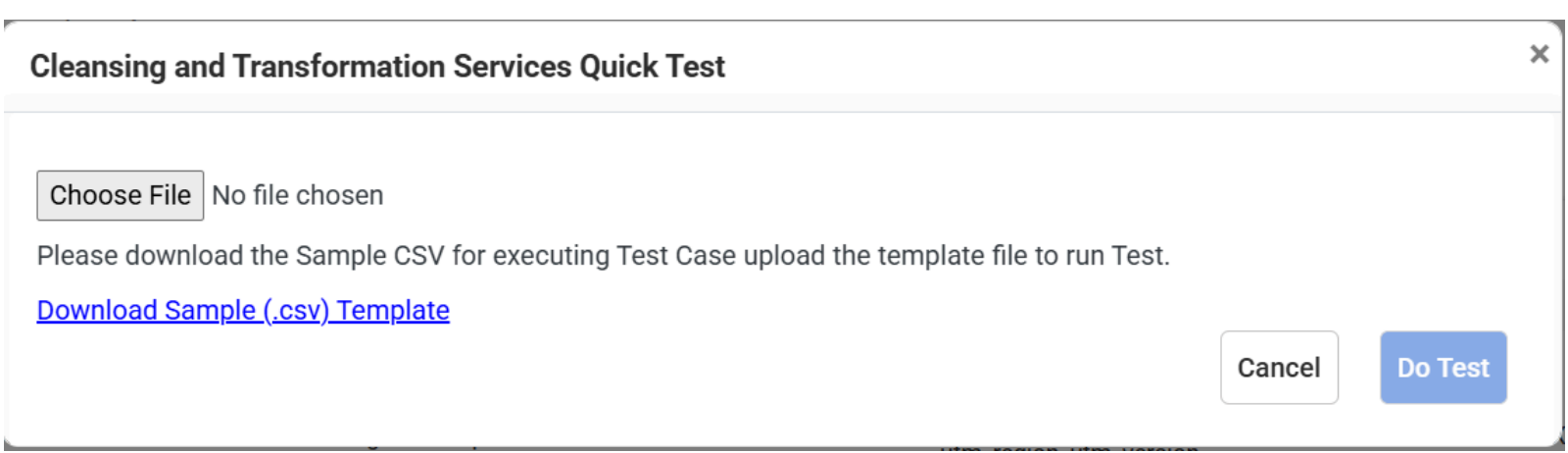
A fast way to validate services without consuming PUs.
- Key Details: Performed on exactly 5 records.
- Benefit: No PU (Processing Unit) consumed.
7. Data Cleaning and Export Configurations
Modes Available
- Clean Only: Cleansed data is returned in a file. Records are not exported.
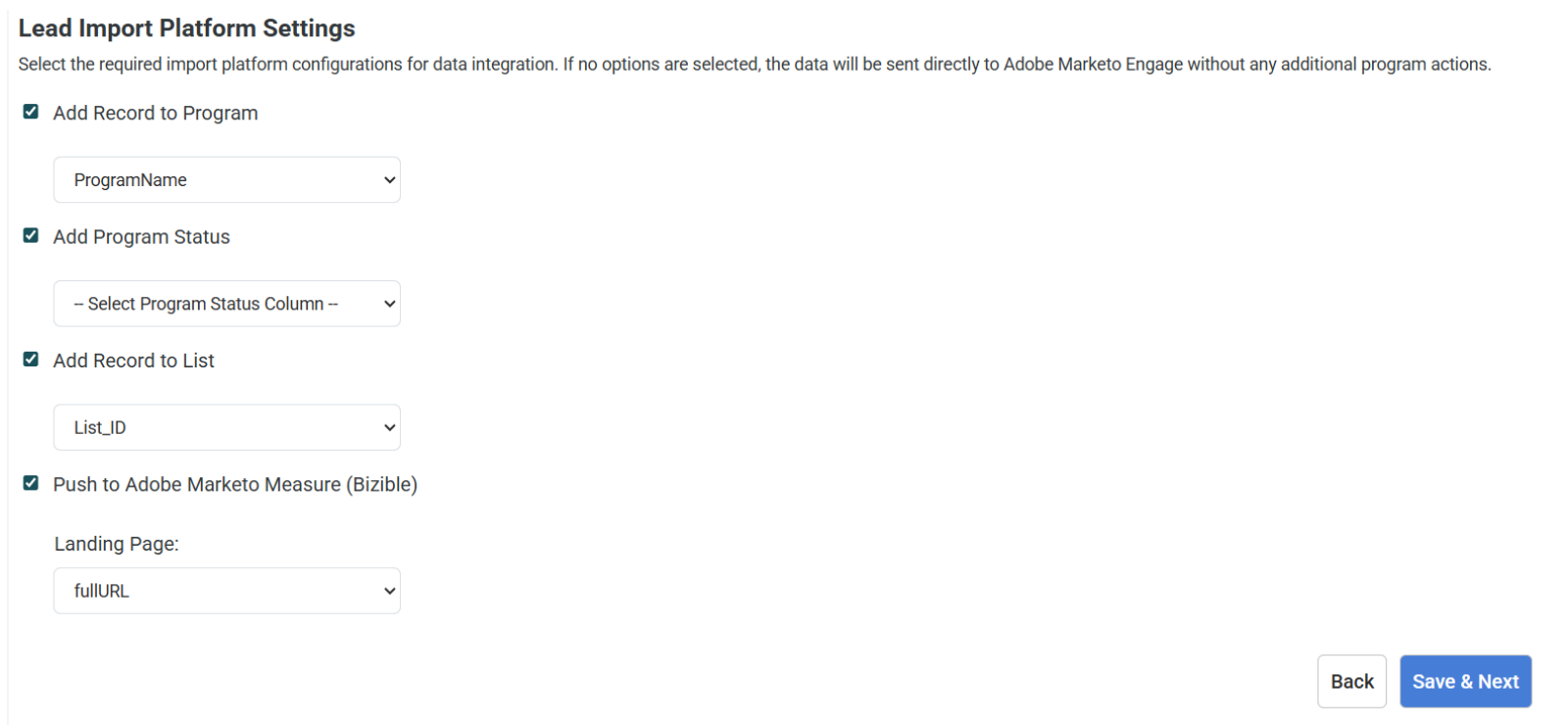
- Clean & Export: Standardized data is pushed to platforms like Adobe Marketo Engage.
Platform Settings
- Lookup Field: How records match existing platform data (Email, Lead ID, etc.).
- Update Rule: Choose Insert, Update, or Upsert.
- Additional Actions: Add records to Programs, Lists, or push to Adobe Marketo Measure (Bizible).
8. Output Mapping
Define how Source fields map to MA (Target) Fields.
- Default Field Update Rules: Global rules (e.g., "Update always if new data is not blank").
- Field Update Overrides: Specify field-level overrides (Always, Only if blank, No update).
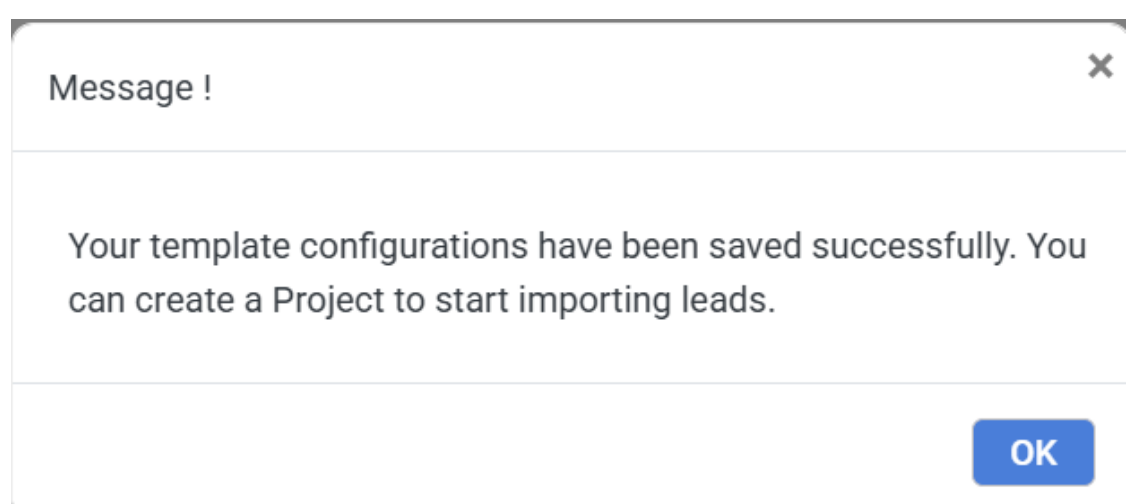
9. Lead Import Project Management
Projects execute imports using templates.
- Create Project: Select Template, enter Name and Description.
- Upload File: Ensure naming matches the template.
- Validate File: The system compares Expected vs. Matched columns.
- Save & Execute: Trigger the actual process.
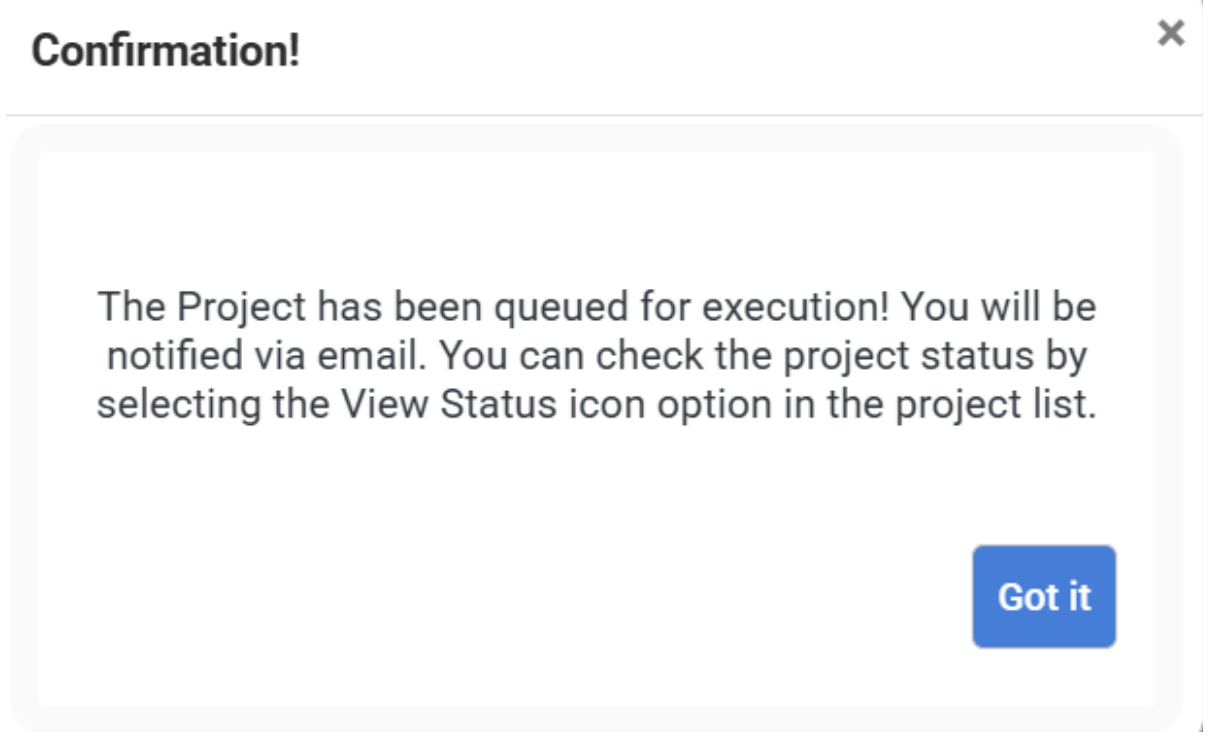
10. Review & Download Outputs
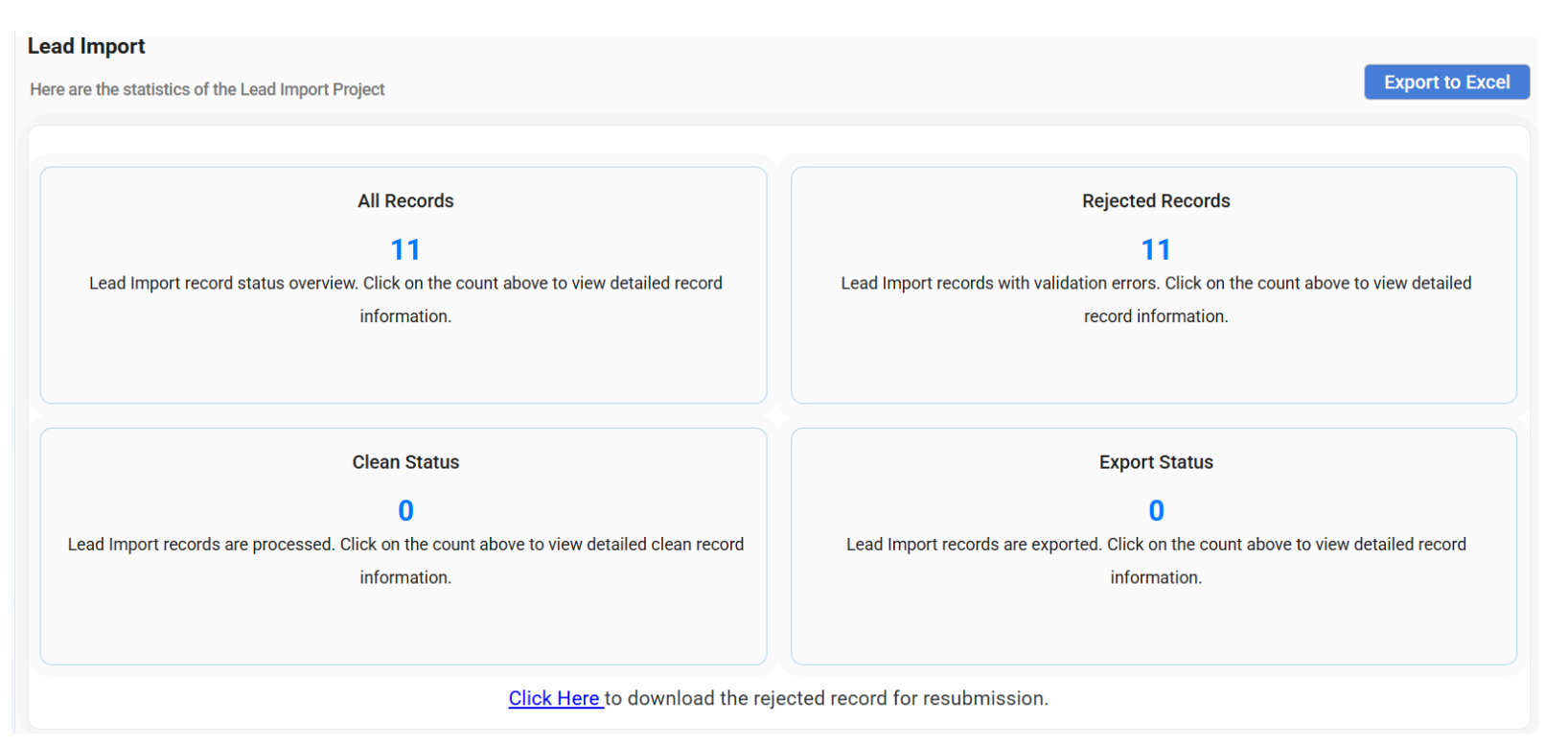
Monitor status via the dashboard overview.
Click Export to Excel to download the report containing:
- Input Sheet: Raw uploaded data baseline.
- Output: Successfully cleaned records exported to Marketo.
- Rejected Records: Fails due to validation or cleansing rules.
- Full Report: Comprehensive audit of every record processed.
- Summary: High-level execution stats (Job ID, Total Rows).
- Legends: Interpretation of color codes and categories.