Match Junk Value
Overview
The Match Junk Value service (also called Junk Lookup) allows users to determine if a given input matches any predefined "Junk" values in a list. This is useful for flagging or filtering out specific records that fall into a category of unwanted or irrelevant data (e.g., certain countries, states, or any other criteria).
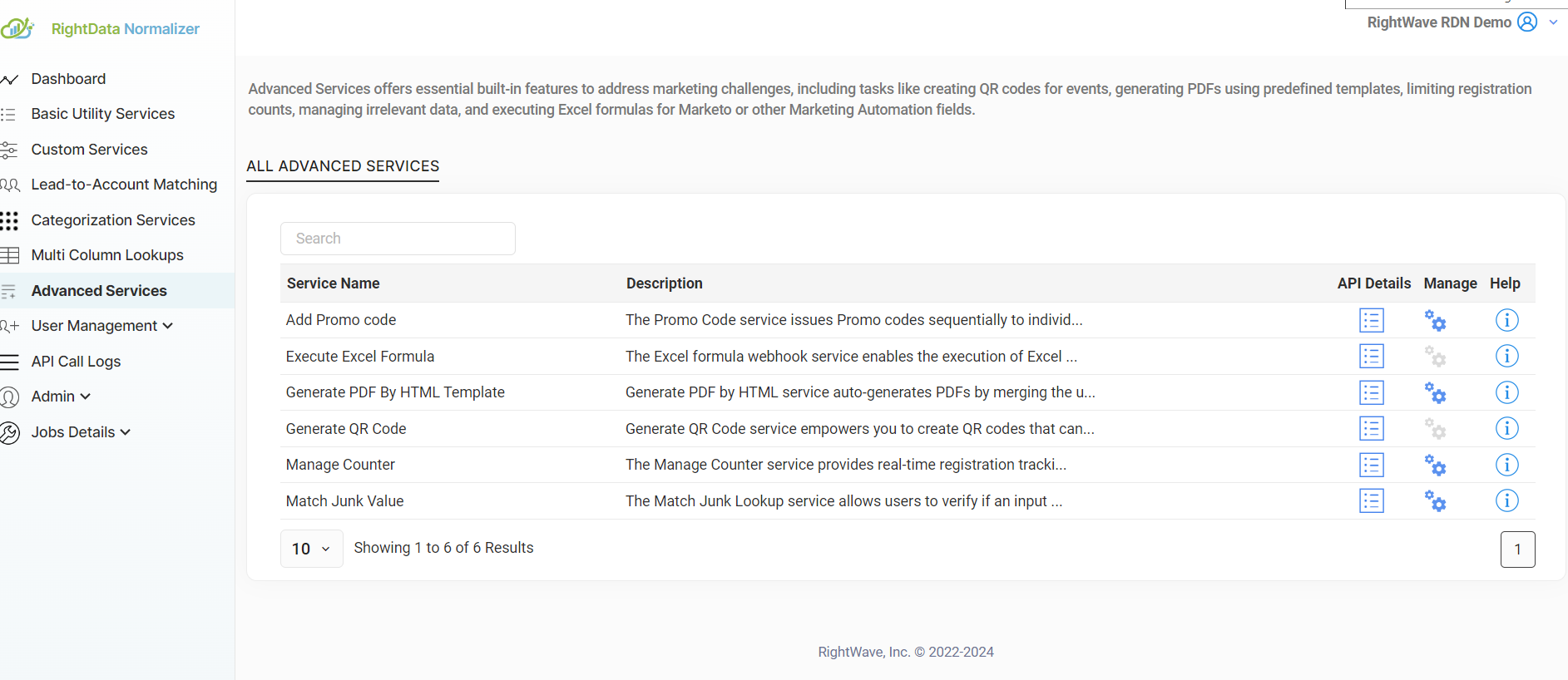
How It Works
- Define Junk Values: Create a list of unwanted or irrelevant values (e.g., countries, states, or any data entries to be excluded).
- API Request: Submit an input value and use the Match Junk Value service to check if it exists in the predefined junk list.
- API Response: The service returns a result indicating whether the input matches a junk value — enabling you to mark the record or take further action.
Example Scenario
A user has a list of 10 countries defined as "junk" (e.g., United States, Canada, Mexico). When "Canada" is submitted as input, the service checks if it exists in the junk list and returns a match, allowing the user to flag or exclude it from further processing.
Setup Instructions
Step 1 — Access the Service
Click on Manage for the Match Junk Value service.
Step 2 — Create a New Junk Lookup
Click "+" to create a new Junk Value Lookup.
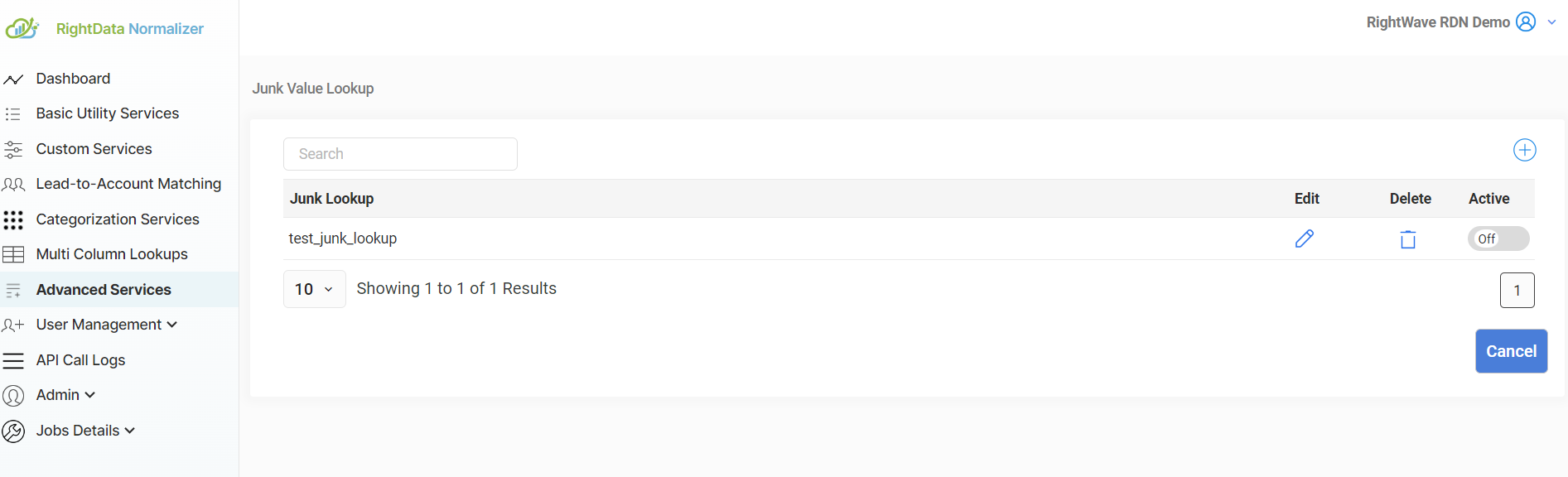
Step 3 — Enter Lookup Name
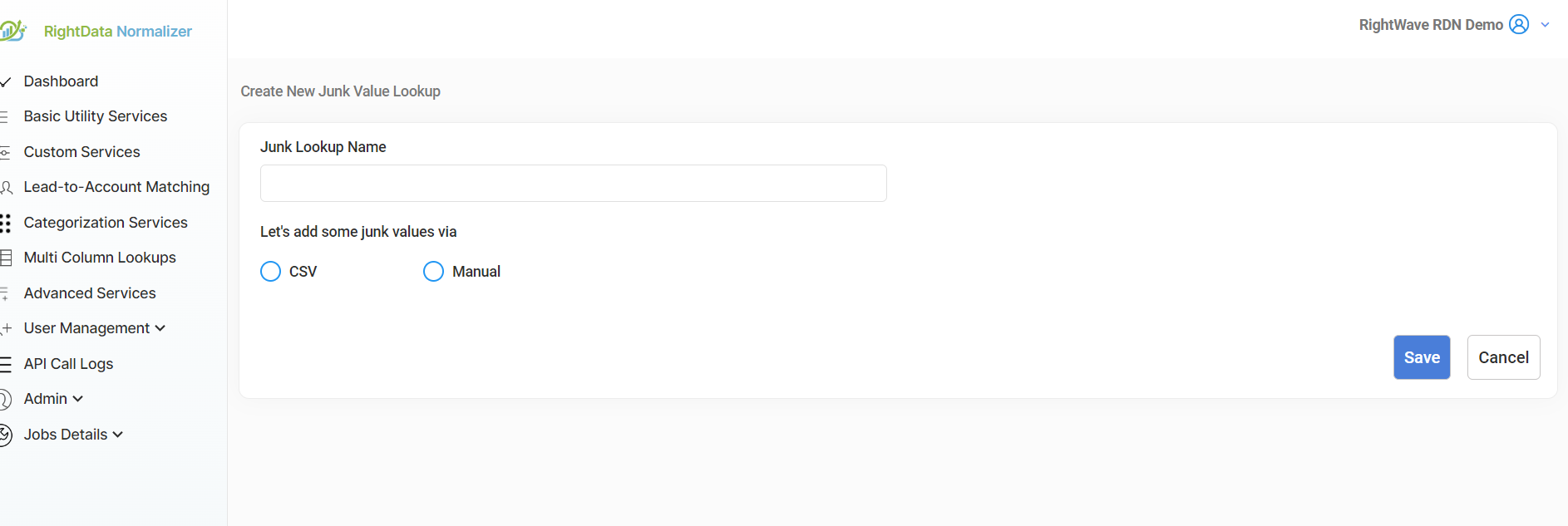
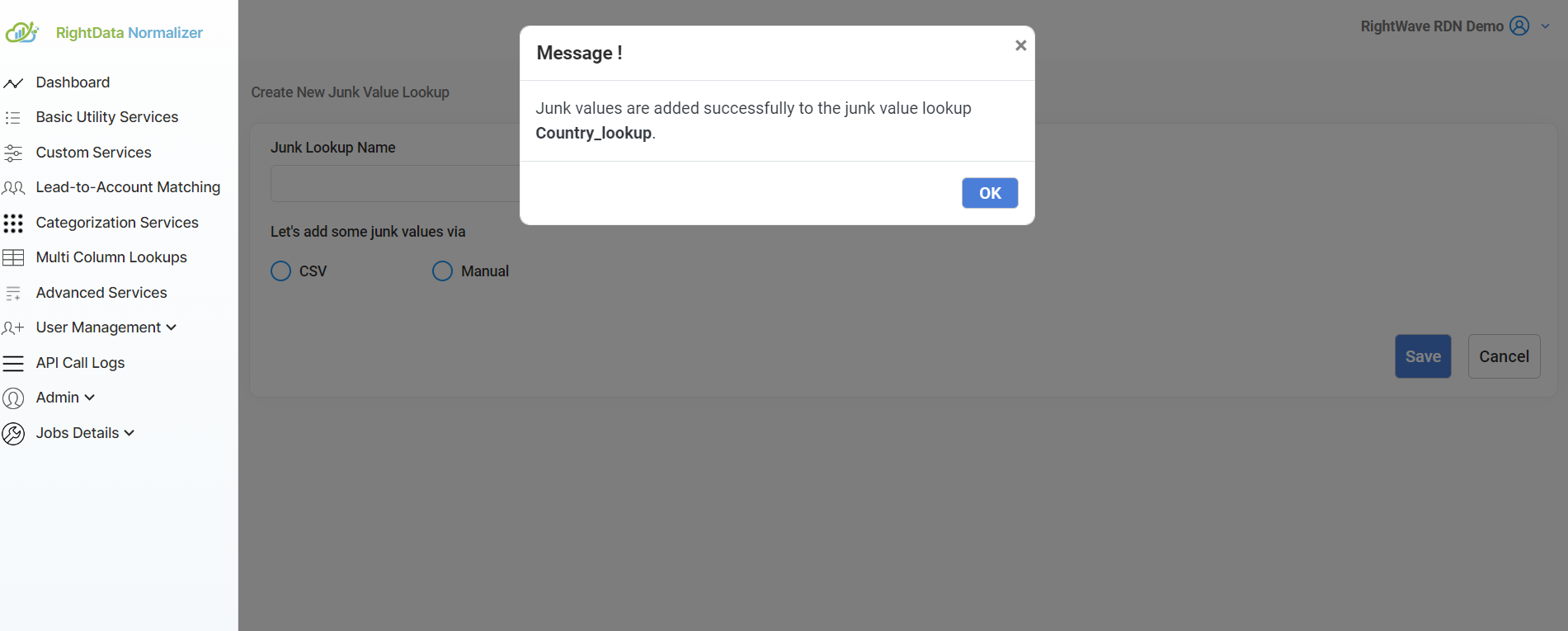
Step 4 — Add Junk Values
Choose one of the following methods to add junk values:
- 📂 CSV Upload
- ✍️ Manual Entry
Import values from a CSV file for large datasets.
- Only one column is allowed (the Junk Values column).
- The first row is treated as the column name; remaining rows are data.
- Maximum 1,000 entries including the header.
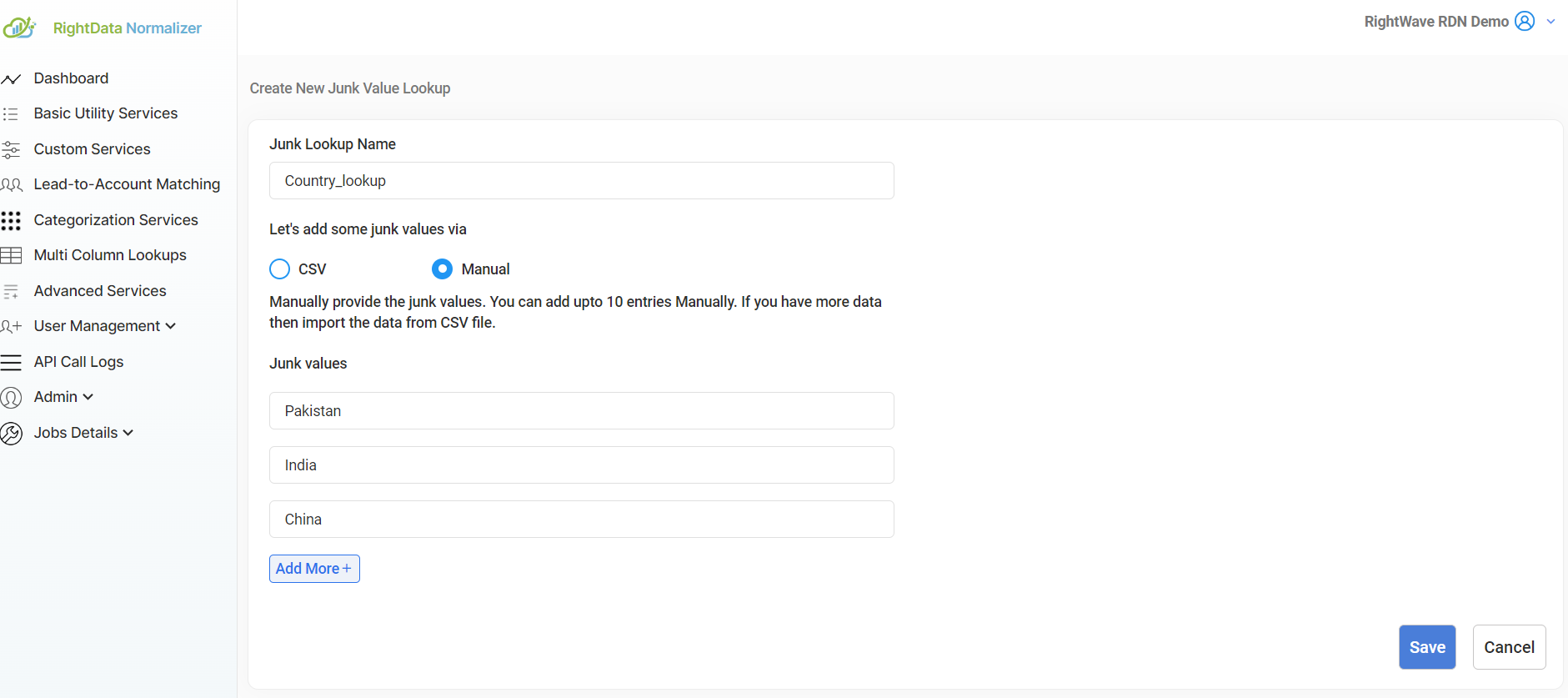
Enter junk values manually — suitable for smaller lists.
Enter the values and click Save.
Step 5 — Activate the Service
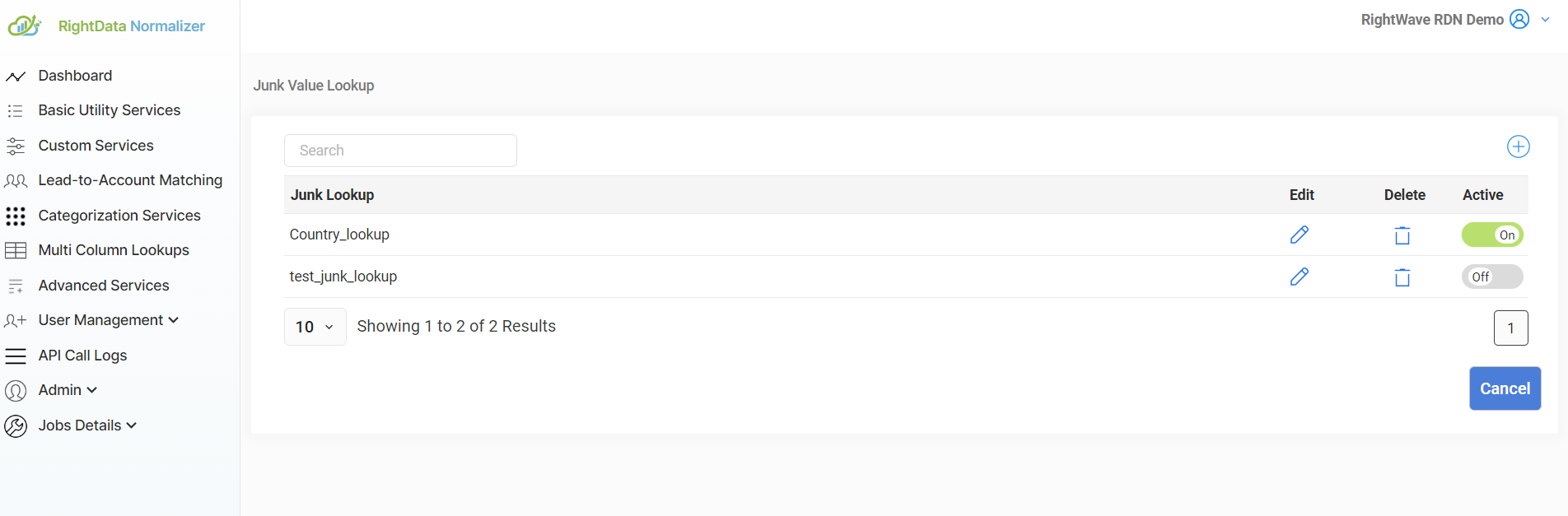
Activate the Junk Value Lookup service once setup is complete.
Step 6 — Test the Service
Click the "Show Live Test Case" button to test the service, then click "Get Result" to see the output.
Configuring in Marketo
Service Name: Match Junk Value
Service Type: Advanced Service
The request parameter values and Marketo Fields shown are examples. Enter values based on your specific service requirement.
Step 1 — Create a New Webhook
Go to Admin → Webhooks and click New Webhook.
Step 2 — Configure the Webhook
| Field | Value |
|---|---|
| Webhook Name | Match Junk Value (or as per requirement) |
| URL | URL of the Match Junk Value service (domain + query params remain fixed; update parameter values with Marketo tokens) |
| Template | Leave blank |
| Request Token Encoding | None (POST) / uneditable (GET) |
| Response Type | JSON |
| Request Type | GET |
Step 3 — Add Authentication Header
Use the exact same auth-key and Content-Type values when configuring the webhook.
Step 4 — Response Mappings
Map the response attribute to the appropriate Marketo field. Returning JSON from the custom service is recommended for easy mapping.