Generate PDF by HTML Template
Overview
The Generate PDF from HTML Template service autonomously inserts user-provided inputs and computed values into a pre-established PDF template. Users must upload a PDF template in HTML format to use this service.
Within the HTML template, merge fields (input variables) must be indicated using the syntax:
$%<Name of the input variable>%$
Upon invoking the PDF generation service, you receive a path to access and download the generated PDF. You can associate this path with a Marketo field for further use.
Setting Up a PDF Template
Step 1 — Access the Service
Click on the Manage option of the Generate PDF by HTML service.
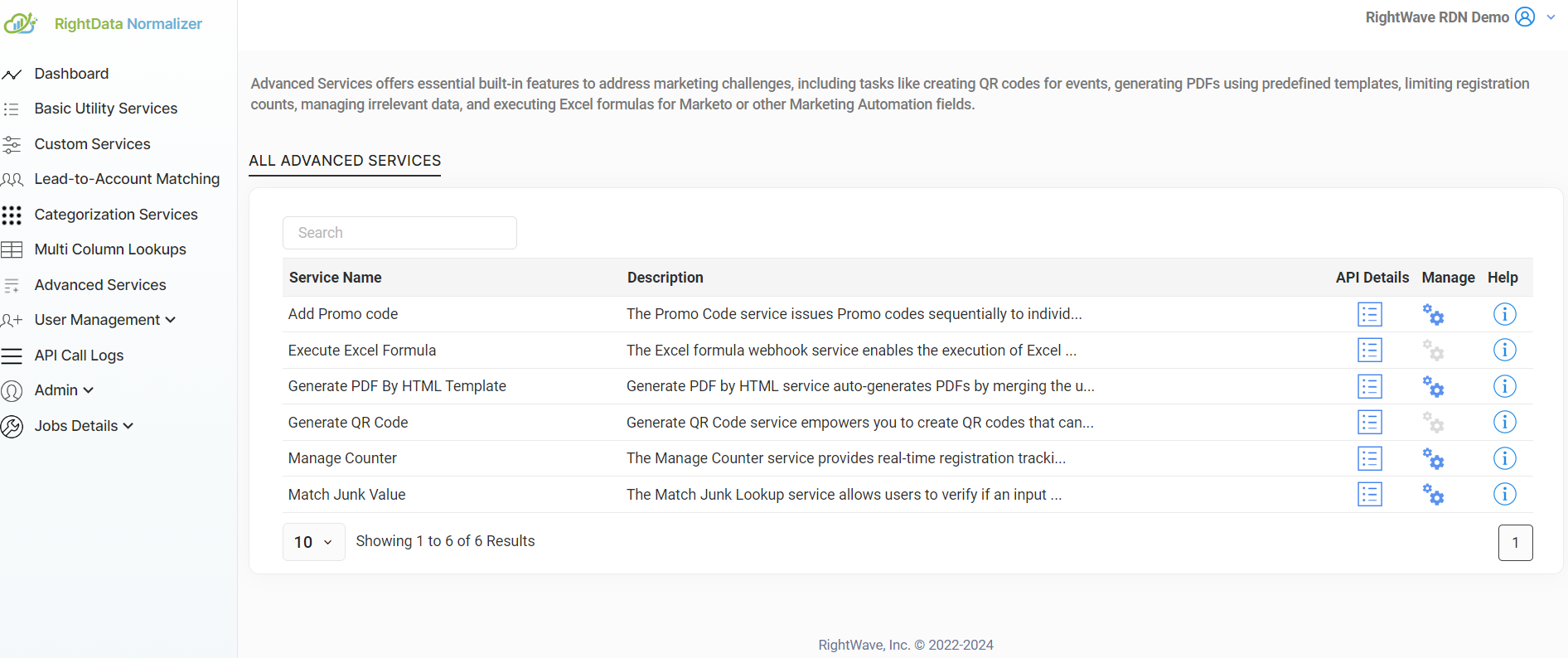
The list of existing personalized PDF configurations is displayed.
Step 2 — Create a New PDF Template
Click the "+" icon. Enter the name of the template, upload the HTML file, and click Save.
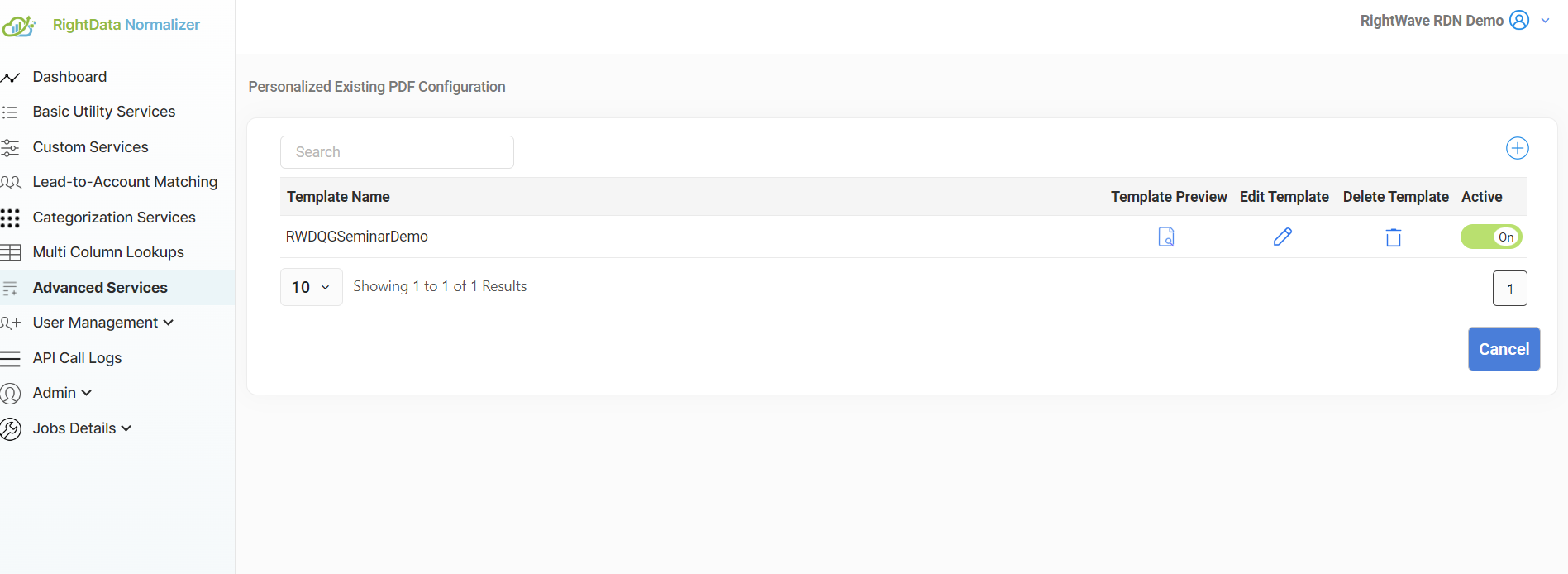
The HTML file must adhere to valid HTML standards, including proper HTML tags.
Step 3 — Preview and Manage the Template
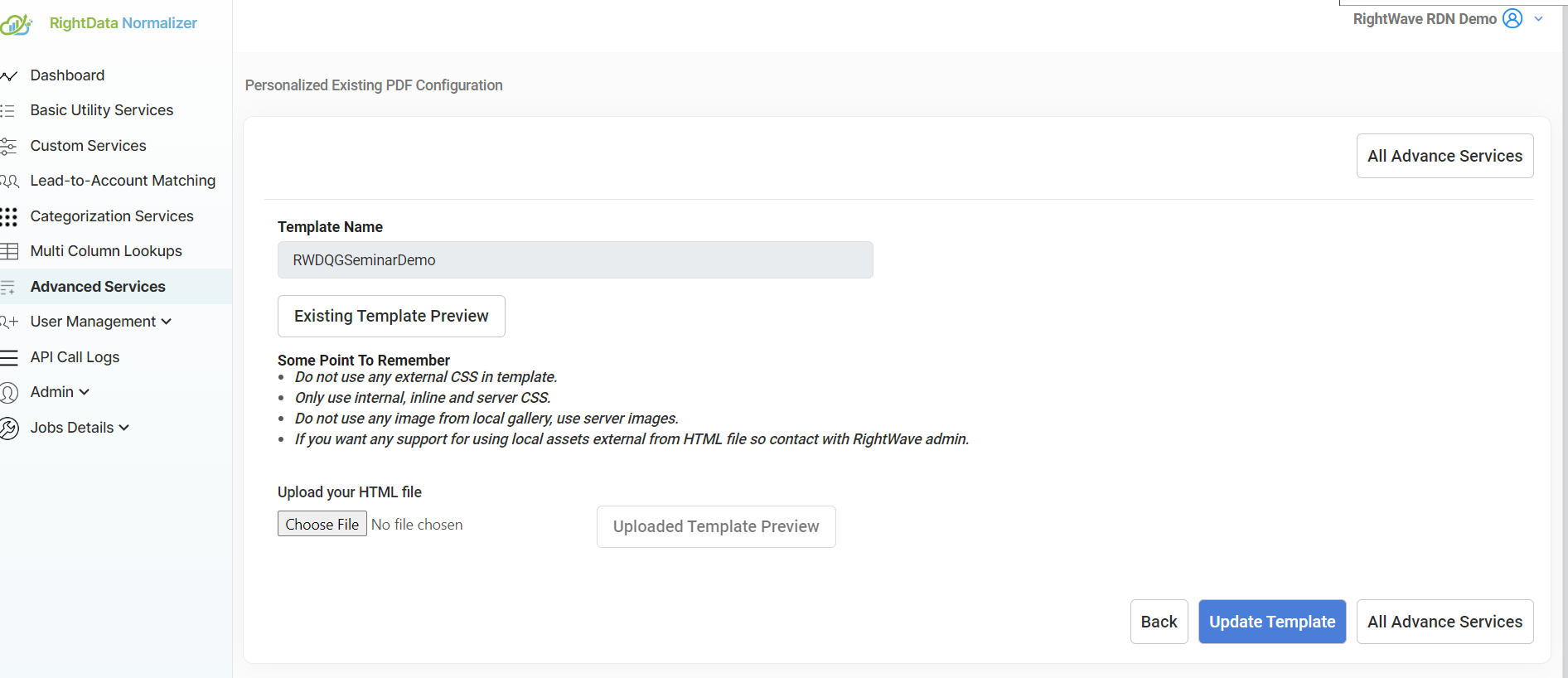
The following options are available for an existing template:
- Existing Template Preview — Preview the currently saved template.
- Update Template — Replace the existing HTML template with a new one.
- Upload Template Preview — Preview the template you are about to upload before saving.
- Save — Save the uploaded template.
Step 4 — Seminar Pass Example

The merge fields in the template are populated via the payload of the POST API. For example, with a Seminar Pass template, the corresponding merge JSON is transmitted through the POST API as follows:
{
  "firstName": "{{lead.First Name}}",
  "lastName": "{{lead.Last Name}}",
  "email": "{{lead.Email Address}}",
  "eventName": "{{lead.Event Name}}"
}
Configuring in Marketo
Service Name: Generate PDF by HTML
Service Type: Advanced Service
The request parameter values and Marketo Fields shown are examples. Enter values based on your specific service requirement.
Step 1 — Create a New Webhook
Go to Admin → Webhooks and click New Webhook.
Step 2 — Configure the Webhook
| Field | Value |
|---|---|
| Webhook Name | Generate PDF by HTML (or as per requirement) |
| URL | URL of the Generate PDF by HTML service (domain + query params remain fixed) |
| Template | Provide the merge JSON payload |
| Request Token Encoding | None |
| Response Type | JSON |
| Request Type | POST |
Step 3 — Add Authentication Header
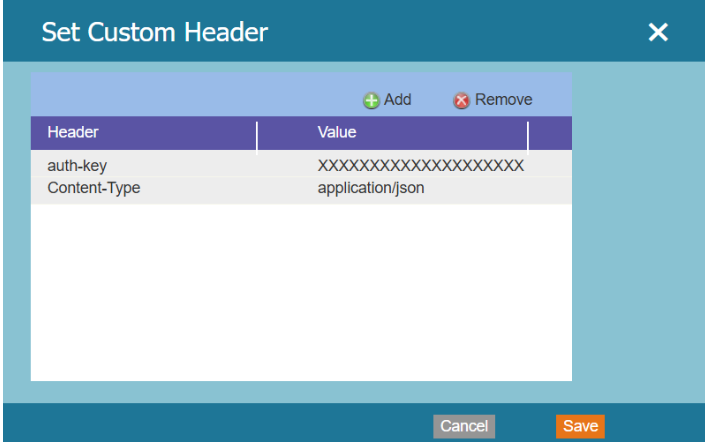
Use the exact same auth-key and Content-Type values when configuring the webhook.
Step 4 — Response Mappings
Map the PDF path response attribute to the appropriate Marketo field. The service returns a JSON response containing the URL to the generated PDF, which can be used in emails or landing pages.