Generate QR Code
Overview
The Generate QR Code service generates a unique QR code for registered leads, which can act as an event ticket. The service takes an email address and a QR Code string (containing relevant event details) as input, and returns a URL pointing to the generated QR Code image.
The QR code can be scanned at the event to retrieve the information embedded within it — ideal for event organizers who need to provide attendees with QR codes for entry.
How It Works
- Input Parameters: Provide the lead's email and a QR Code string with event-specific details.
- Generate QR Code: The service encodes the provided information into a unique QR code.
- Return Output: A URL pointing to the generated QR code image is returned.
- Use in Event: The QR code can be scanned by any smartphone at the event to retrieve attendee details.
Input Parameters
| Parameter | Description |
|---|---|
| A valid email address of the lead or event attendee | |
| QR Code String | A JSON string or key-value pair (delimited by a character) containing event-specific details such as attendee name, email, event details, etc. |
Example Scenario
A company hosting an event needs to issue unique QR codes to each registered attendee.
Attendee Details:
- First Name: Mike
- Last Name: Jordan
- Email: abc123@example.com
- Lead ID: 987643
- Company: RightWave
- Event Venue: Suite-203J, RightWave Infosolutions, Dehradun 248001
QR Code String (JSON):
{
  "email": "abc123@example.com",
  "leadID": "987643",
  "firstName": "Mike",
  "lastName": "Jordan",
  "company": "RightWave",
  "EventVenue": "Suite-203J, RightWave Infosolutions, Dehradun 248001"
}
API Request:
POST https://api.rightwave.com/rdn/api/adv/genrateQRCode
Response:
{
  "qrcodeurl": "https://api.rightwave.com/rdn/qr/6156b29e65bcfc5664451e97"
}
The qrcodeurl field contains the URL to the generated QR code image, which can be mapped to a Marketo field and included in emails or landing pages.
Use Cases
- Event Registration: Attendees receive a unique QR code upon registering that acts as their entry ticket.
- Lead Management: Attendee details are embedded in the QR code and can be scanned to quickly access their information.
- Ticketing: QR codes can be scanned at the event to verify entry.
Configuring in Marketo
Service Name: Generate QR Code
Service Type: Advanced Service
The request parameter values and Marketo Fields shown are examples. Enter values based on your specific service requirement.
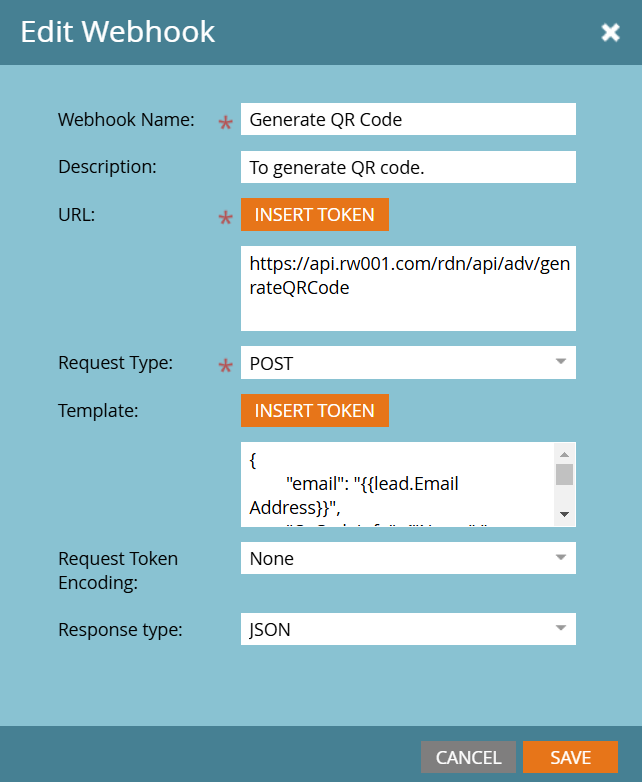
Step 1 — Create a New Webhook
Go to Admin → Webhooks and click New Webhook.
Step 2 — Configure the Webhook
| Field | Value |
|---|---|
| Webhook Name | Generate QR Code (or as per requirement) |
| URL | https://api.rightwave.com/rdn/api/adv/genrateQRCode |
| Template | {"email": "{{lead.Email Address}}", "QrCodeInfo": {"Name":"{{lead.First Name}}","Company":"{{company.Company Name}}"}} |
| Request Token Encoding | None |
| Response Type | JSON |
| Request Type | POST |
Step 3 — Add Authentication Header
Use the exact same auth-key and Content-Type values when configuring the webhook.
Step 4 — Response Mappings
Map the qrcodeurl response attribute to the appropriate Marketo field. The URL can then be used in emails or landing pages sent to event registrants.