Allow Remote Site Access
Configure Salesforce to allow callouts to the RDN API.
Why Remote Sites Matter
For your Salesforce org to make API calls to external services (like RDN), you must explicitly allow those endpoints in Salesforce's security settings. This prevents unauthorized callouts and protects your org.
Step-by-Step Setup
Step 1: Log In to Salesforce
Navigate to your Salesforce org:
https://login.salesforce.com
Enter your credentials and log in.
Step 2: Open Setup
Click the gear icon (⚙) at the top right corner and select Setup.
Step 3: Find Remote Site Settings
In the Quick Find box on the left sidebar, type:
Remote Site Settings
Step 4: Click Remote Site Settings
Select "Remote Site Settings" under the Security section.
Step 5: Create New Remote Site
Click the "New Remote Site" button.
Step 6: Fill Out the Form
Enter the following details:
| Field | Value | Notes |
|---|---|---|
| Remote Site Name | My_RDN_API_Site | No spaces allowed. Use underscores. |
| Remote Site URL | https://api.example.com | Base domain only, no paths |
| Description | RDN API Integration | Optional but helpful |
| Disable Protocol Security | Unchecked ☐ | Keep unchecked (HTTPS only) |
| Active | Checked ☑ | Enable this remote site |
Configuration Screen
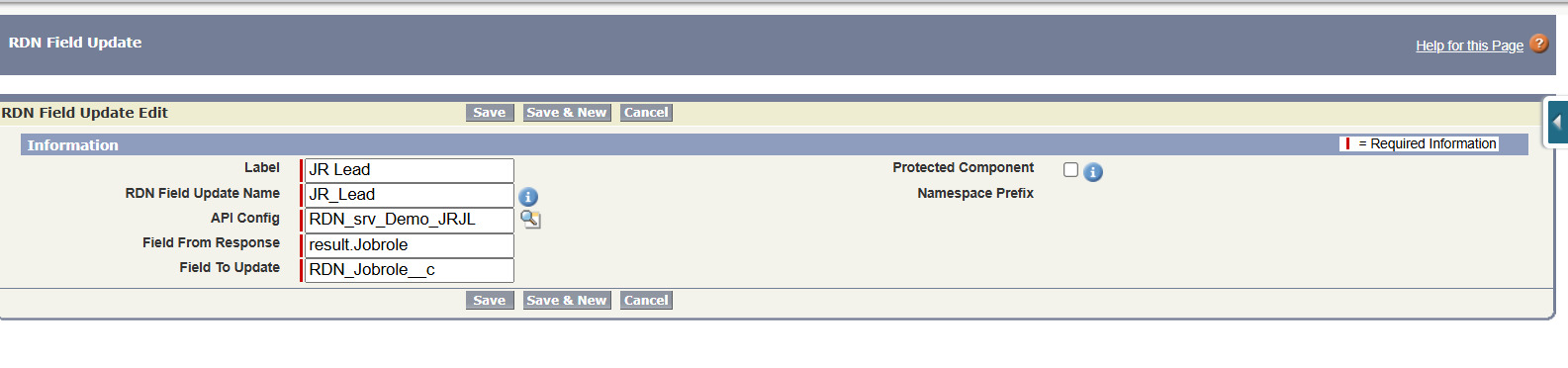
Important URL Format: Enter only the base domain (e.g., https://api.example.com). Do NOT include paths like /v1/endpoint or trailing slashes.
Step 7: Save
Click the Save button to complete the configuration.
URL Format Guide
✅ Correct Format
https://api.rdn.io
https://api.example.com
https://data.company.com
❌ Incorrect Formats
https://api.rdn.io/v1          ← Don't include paths
https://api.rdn.io/            ← Don't include trailing slash
api.rdn.io                       ← Must include https://
http://api.rdn.io               ← Use https, not http
Multiple Remote Sites
If you integrate with multiple RDN environments (Dev, Staging, Production):
- Create separate Remote Site records for each environment
- Use different names for each (e.g.,
RDN_Dev_API,RDN_Prod_API) - Enable/disable as needed for your deployment
Example Setup
Remote Site Name: RDN_Dev_API
URL: https://dev-api.rdn.io
Active: Checked

Remote Site Name: RDN_Prod_API
URL: https://prod-api.rdn.io
Active: Checked
Verification
Test Remote Site Access
- Create a test Lead or Contact record
- Update a field that triggers the integration
- Check Salesforce Debug Logs (Setup → Debug Logs)
- Look for successful HTTP callouts
Check Debug Logs
- Go to Setup → Developer Console
- View debug logs for your user
- Search for "Http request" or "Http response"
- Verify status is
200or201(success)
Troubleshooting
Error: "Remote Site Not Allowed"
Problem: Salesforce is blocking the API call
Solution:
- Verify the Remote Site URL exactly matches your RDN endpoint
- Check that the Remote Site is marked as Active
- Verify you're using
https://(nothttp://) - Check that there's no trailing slash in the URL
Error: "Callout Timeout"
Problem: The API call is taking too long
Solution:
- Check RDN API status page
- Verify network connectivity to the API
- Increase timeout in your Apex code if needed
- Contact RDN support if the API is slow
Remote Site Was Created but Still Getting Errors
Solution:
- Clear your browser cache
- Log out and log back in to Salesforce
- Wait 5-10 minutes for changes to propagate
- Try the test again
Salesforce Callout Limits
Be aware of these Salesforce governor limits for API calls:
| Limit | Value |
|---|---|
| Max synchronous callouts per transaction | 100 |
| Max HTTP request size | 6 MB |
| Callout timeout | 60 seconds |
| Max queueable jobs per day | 250,000 |
The RDN integration uses asynchronous Queueable jobs, which means:
- ✅ Won't hit synchronous callout limits
- ✅ Can retry on timeout
- ✅ Better performance overall
Security Best Practices
1. Use HTTPS Only
Always use https:// protocol for encrypted communication.
2. Limit Remote Sites
Only allow the specific RDN API domains you need. Don't add overly broad domains.
3. Monitor Callouts
Regularly review debug logs to ensure only expected API calls are being made.
4. Rotate Credentials
If your Auth Token is compromised:
- Generate a new token in RDN
- Update the token in your RDN API Provider metadata
- Deactivate the old token
Next Steps
- Testing & Validation - Run tests to verify setup
- Troubleshooting - Common issues and fixes